1
Plug It In2
Get Software3
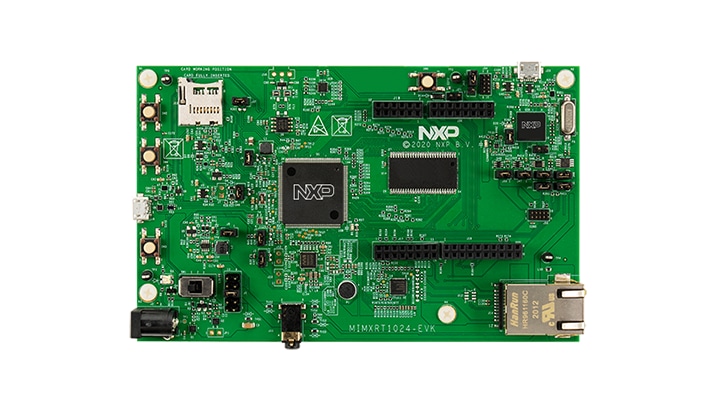
Build, RunThe MIMXRT1024 Evaluation Kit is an entry-level development board, which gives you the option of becoming familiar with the processor before investing a large amount or resources in more specific designs. This section will provide an introduction to your new Evaluation Kit and how to connect it for the first time.
| Evaluation Kit Contents | |
|---|---|
| Item | Description |
| EVK Board | EVK board with processor, memory, interfaces, and so on. |
| USB Cable | USB cable (Micro-B to Standard-A) |
Something went wrong! Please try again.
Your MIMXRT1024-EVK/EVKB comes loaded with a "bubble level" demo that leverages the onboard accelerometer. When the board is flat, the Green LED is turned off, and when the board is tilted, the green LED gradually illuminates based on the degree of tilt on the X-axis.
J23Note: If the EVK board exhibits intermittent operation, use a USB Y cable with two USB A to single micro B connector or an external power supply via the barrel jack (place a jumper across pins 1 and 2 of header J1) to power the board.
Something went wrong! Please try again.
The MCUXpresso SDK is complimentary and includes full source code under a permissive open source license for all hardware abstraction and peripheral driver software.
Click below to download a preconfigured SDK release for the MIMXRT1024-EVK/EVKB.
You can also use the online SDK Builder to create a custom SDK package for the MIMXRT1024-EVK/EVKB using the SDK builder.
Something went wrong! Please try again.
NXP offers a complimentary toolchain called MCUXpresso IDE.
No problem! The MCUXpresso SDK includes support for other tools such as IAR , Keil , and command-line GCC .
Something went wrong! Please try again.
Many of the example applications output data over the MCU UART so you'll want to make sure that the driver for the board's virtual COM port is installed. Before you run the driver installer, you MUST have the board plugged into your PC.
With the serial port driver installed, run your favorite terminal application to view the serial output from the MCU's UART. Configure the terminal to 115,200 baud rate, 8 data bits, no parity and 1 stop bit. To determine the port number of the MIMXRT1024-EVK/ VKB's virtual COM port, open the device manager and look under the "Ports" group.
Not sure how to use a terminal application? Try one of these tutorials:
Tera Term Tutorial, PuTTY TutorialNote: If the EVK board exhibits intermittent operation, use a USB Y cable with two USB A to single micro B connector or an external power supply via the barrel jack (place a jumper across pins 1 and 2 of header J1) to power the board.
Something went wrong! Please try again.
The MCUXpresso SDK comes with a long list of example application code. To see what's available, browse to the SDK boards folder of your SDK installation and select your board, the MIMXRT1024-EVK/EVKB.
<sdk_install_directory>/boards/evkbimxrt1024</sdk_install_directory>To learn more about specific example code, open the readme.txt file in an example’s directory.
Something went wrong! Please try again.
If one or more of the demo applications or driver examples sounds interesting, you are probably wanting to know how you can build and debug yourself. The Getting Started with MCUXpresso SDK guide provides easy, step-by-step instructions on how to configure, build and debug demos for all toolchains supported by the SDK.
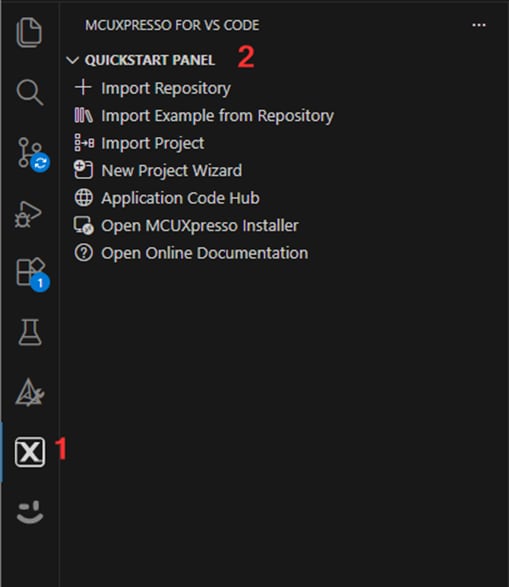
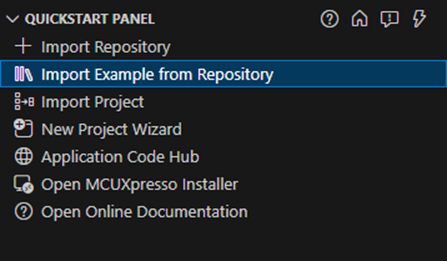
Use the guide below to learn how to open, build and debug an example application using MCUXpresso IDE.


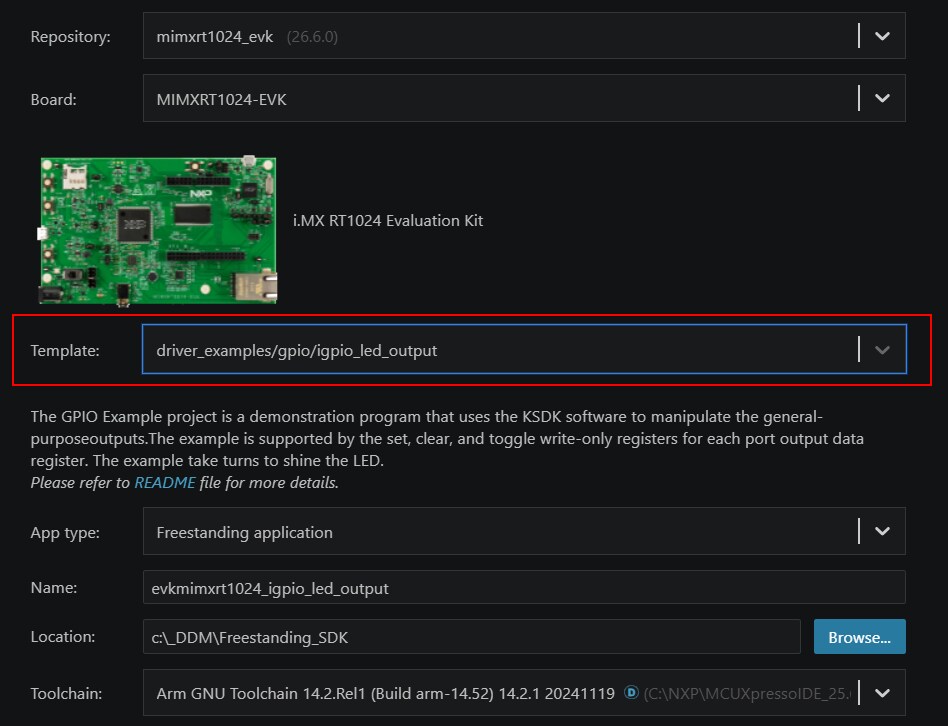
The following steps will guide you through opening the hello_world example.


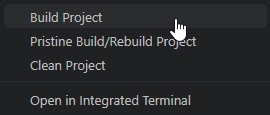
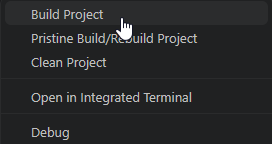
You can see the status of the build in the Console tab.


The following steps guide you through opening the hello_world example application. These steps may change slightly for other example applications as some of these applications may have additional layers of folders in their path.
If not already done, open the desired demo application workspace. Most example application workspace files can be located using the following path:
<install_dir >/boards/<board_name >/<example_type >/ <application_name>/iar </application_name> </example_type> </board_name> </install_dir>Using the hello_world demo as an example, the path is located in:
<install_dir> /boards/evkmimxrt1024/demo_apps/hello_world/iar/hello_world.eww </install_dir>Select the desired build target from the drop-down.
For this example, select the "hello_world – flexspi_nor_debug" target.
To build the demo application, click the "Make" button, highlighted in red below.
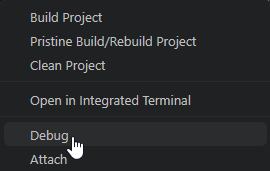
To download and run the application, perform these steps:
Open the terminal application on the PC, such as PuTTY or TeraTerm, and connect to the debug COM port. Configure the terminal with these settings:
BOARD_DEBUG_UART_BAUDRATE variable in board.h file)In IAR, click the "Download and Debug" button to download the application to the target
The application is then downloaded to the target and automatically runs to the main() function
Run the code by clicking the "Go" button to start the application
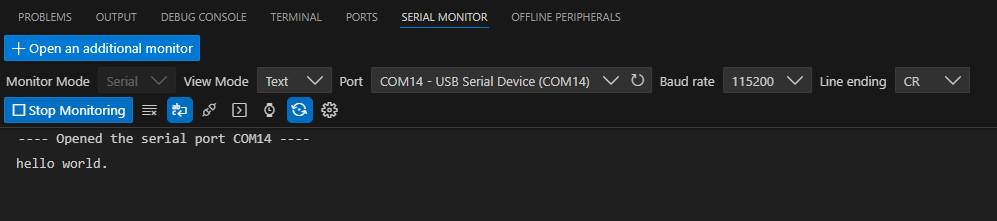
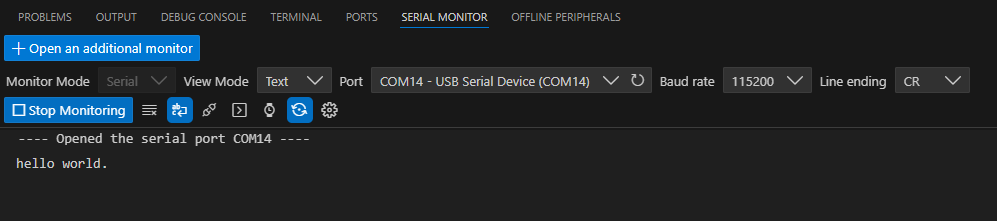
The hello_world application is now running and a banner is displayed on the terminal. If this is not true, check your terminal settings and connections
After the MDK tools are installed, Cortex® Microcontroller Software Interface Standard (CMSIS) device packs must be installed to fully support the device from a debug perspective. These packs include things such as memory map information, register definitions and flash programming algorithms. Follow these steps to install the IMXRT102x CMSIS pack.

The following steps will guide you through opening the hello_world application. These steps may change slightly for other example applications as some of these applications may have additional layers of folders in their path.
<install_dir >/boards/<board_name >/<example_type >/ <application_name> /mdk</application_name> </example_type> </board_name> </install_dir><install_dir> /boards/evkmimxrt1024/demo_apps/hello_world/mdk/hello_world.uvmpw </install_dir>
To download and run the application, perform these steps:
BOARD_DEBUG_UART_BAUDRATE variable in board.h file)


hello_world application is now running and a banner is displayed on the terminal. If this is not true, check your terminal settings and connections 
This section contains the steps to install the necessary components required to build and run a KSDK demo application with the Arm GCC toolchain, as supported by the Kinetis SDK. There are many ways to use Arm GCC tools, but this example focuses on a Windows environment. Though not discussed here, GCC tools can also be used with both Linux OS and Mac OSX.
Download and run the installer from GNU Arm Embedded Toolchain . This is the actual toolchain (that is, compiler, linker, and so on). The GCC toolchain should correspond to the latest supported version, as described in the Kinetis SDK Release Notes.
The Minimalist GNU for Windows (MinGW) development tools provide a set of tools that are not dependent on third-party C-Runtime DLLs (such as Cygwin). The build environment used by the KSDK does not utilize the MinGW build tools, but does leverage the base install of both MinGW and MSYS. MSYS provides a basic shell with a UNIX-like interface and tools.
Download the latest MinGW mingw-get-setup installer from MinGW Installer.
Run the installer. The recommended installation path is C:\MinGW, however, you may install to any location
Note: The installation path cannot contain any spaces.
Ensure that the "mingw32-base" and "msys-base" are selected under Basic Setup.
Click "Apply Changes" in the "Installation" menu and follow the remaining instructions to complete the installation.
Add the appropriate item to the Windows operating system Path environment variable. It can be found under Control Panel → System and Security → System → Advanced System Settings in the "Environment Variables..." section. The path is:
<mingw_install_dir>\bin</mingw_install_dir>Assuming the default installation path, C:\MinGW, an example is shown below. If the path is not set correctly, the toolchain does not work.
Note: If you have "C:\MinGW\msys\x.x\bin" in your PATH variable (as required by KSDK 1.0.0), remove it to ensure that the new GCC build system works correctly.
Create a new system environment variable and name it ArmGCC_DIR. The value of this variable should point to the Arm GCC Embedded tool chain installation path, which, for this example, is:
C:\Program Files (x86)\GNU Tools Arm Embedded\4.9 2015q3Reference the installation folder of the GNU Arm GCC Embedded tools for the exact path name of your installation.

To build an example application, follow these steps.
Change the directory to the example application project directory, which has a path like this:
<boards >/boards/<board_name >/<example_type >/ <application_name> /armgcc</application_name> </example_type> </board_name> </boards>For this guide, the exact path is:
<install_dir> /boards/evkbimxrt1024/demo_apps/hello_world/armgcc </install_dir>
Type "build_debug.bat” on the command line or double click on the "build_debug.bat" file in Windows operating system Explorer to perform the build. The output is shown in this figure:
This section describes steps to run a demo application using J-Link GDB Server application. To perform this exercise, two things must be done:
After the J-Link interface is configured and connected, follow these steps to download and run the demo applications:
Open the terminal application on the PC, such as PuTTY or TeraTerm, and connect to the debug serial port number. Configure the terminal with these settings:
BOARD_DEBUG_UART_BAUDRATE variable in board.h file)Open the J-Link GDB Server application. Go to the SEGGER install folder, for example:
C:\Program Files (x86)\SEGGER\JLink_V616fOpen the command windows here, for Debug and Release targets, and use the command "JLinkGDBServer.exe". For the sdram_debug and sdram_release targets, use the command:
JLinkGDBServer.exescriptfile <install_dir> /boards/evkbimxrt1024/demo_apps/hello_world/evkbimxrt1024_sdram_init.jlinkscript". </install_dir>
Programs -> GNU Tools Arm Embedded <version > " and select "GCC Command Prompt". </version> 
Change to the directory that contains the example application output. The output can be found in using one of these paths, depending on the build target selected:
<install_dir >/boards/<board_name >/<example_type >/ <application_name> /armgcc/debug</application_name> </example_type> </board_name> </install_dir > <install_dir >/boards/<board_name >/<example_type >/ <application_name> /armgcc/release</application_name> </example_type> </board_name> </install_dir >For this guide, the path is:
<install_dir> /boards/evkmimxrt1024/demo_apps/hello_world/armgcc/debug </install_dir> "arm-none-eabi-gdb.exe <application_name >.elf ". For this example, it is "arm-none-eabi-gdb.exe hello_world.elf". </application_name>
Run these commands:
The application is now downloaded and halted at the reset vector. Execute the "monitor go" command to start the demo application.
The hello_world application is now running and a banner is displayed on the terminal. If this is not true, check your terminal settings and connections.
Something went wrong! Please try again.
The i.MX RT family supports a number of different boot sources, and includes the option for memory to be copied to an on-chip or external destination memory as well as Execute in Place (XIP) for some interfaces. Learn more about your choices and which one is best for your design.
| Documents and Videos | Description |
|---|---|
| AN12108 How to Enable Boot from QSPI Flash | This document describes how to use Flashloader step by step to program a bootable image into the external storage device either by using OpenSDA or MfgTool. |
MCUXpresso Secure Provisioning Tool A GUI-based application provided to simply the generation and provisioning of bootable executables on NXP i.MX RT.
Community Resources for Booting Look for answers to your boot questions or submit new questions in our Community.
| Documents and Videos | Description |
|---|---|
| AN12437 i.MX RT Series Performance Optimization | How to optimize the system performance running on different memory devices. |
| AN12108 How to Enable Boot from QSPI Flash | This document describes how to use Flashloader step by step to program a bootable image into the external storage device either by using Open SDA or MfgTool. |
| AN12564 Implement Read While Write (RWW) on i.MX RT Series | How to implement the RWW requirement on the i.MX RT series. |
Several examples, demos and drivers are available within the SDK to help you get started. Some common examples for external memory are listed below.
How to use the FlexSPI driver with polling.
<SDK_PATH>/boards/evkbimxrt1024/driver_examples/flexspi/nor/polling_transferHow to use the SEMC controller driver to initialize the external SDRAM chip.
<SDK_PATH>/boards/evkbimxrt1024/driver_examples/semc/sdramMCUXpresso Secure Provisioning Tool A GUI-based application provided to simply the generation and provisioning of bootable executables on NXP i.MX RT.
The i.MX RT1024 is secure-by-design and supported by secure software driving the secure System on a Chip (SoC).
| Documents and Videos | Description |
|---|---|
| i.MX RT Secure Boot Lab Guide | Learn how to use the secure boot features of the i.MX family including generating key pairs and certificates, programming fuses using leftosb tool, and signing firmware. |
| Secure Boot on the i.MX RT10xx Crossover MCUs | Learn more about secure boot features and how the MCUXpresso Secure Provisioning Tool allows you to configure them. |
| Getting Starting with MCUXpresso Secure Provisioning Tool | This series of videos covers the basic getting started aspects of the tools with a live demonstration of the tool showcasing a variety of provisioning types and boot devices available on the i.MX RT1060 evaluation kit. |
| Secure Boot Webinar and demo | Using the latest NXP software and tools, you can integrate boot authentication and encrypted execution into your design based on i.MX RT10xx MCUs. Learn more about secure boot features and how the MCUXpresso Secure Provisioning Tool allows you to configure them. |
| Realizing Today's Security Requirements: Achieving End-To-End Security with a Crossover Processor | Learn about common shared security goals that IoT end and edge nodes should meet, as well as the steps, tools and procedures needed to achieve root of trust in end devices. |
| AN12800 i.MX RT10xx Fuse Provisioning for Security | For secure applications, there are some fuses that are not related to security features and might need to be configured. This document discusses fuse provisioning for secure applications and provides fuse configuration recommendations. |
| AN12419 Secure JTAG for i.MX RT10xx | This document discusses how the Secure JTAG on the i.MX RT10xx MCU family can be used. |
| AN12901 DCP How to do Key Management | The i.MX RT10xx provides a Data Co-Processor (DCP) block, which supports Advanced Encryption Standard (AES) encryption and hashing functions. This application note describes how to use the AES block with different keys, and how to manage keys. |
Several examples, demos and drivers are available within the SDK to help you get started. Some common examples related to security and integrity are listed below.
A demonstration program that uses the KSDK software to implement several cryptography algorithms using the DCP software driver.
Path:
<SDK_PATH>/boards/evkbimxrt1024/driver_examples/dcpDemonstrates how to set up BEE driver for on the fly decryption of data stored in the QSPI memory region.
Path:
<SDK_PATH>/boards/evkbimxrt1024/driver_examples/beeProgram performs cryptographic algorithm benchmarking and testing. (Requires optional mbedTLS middleware package).
Path:
<SDK_PATH>/boards/evkbimxrt1024/mbedtls_examples/One-stop secure boot tool: NXP-MCUBootUtility A GUI tool specially designed for NXP MCU secure boot. It includes all the features of NXP’s official security enablement toolset with support for full graphical user interface operation.
MCUXpresso Secure Provisioning Tool A GUI-based application provided to simply the generation and provisioning of bootable executables on NXP i.MX RT.
| Documents and Videos | Description |
|---|---|
| Wired Communications Middleware for NXP Microcontrollers | Learn about wired communications libraries and examples provided through MCUXpresso SDK. |
| CANopen in NXP's MCUXpresso SDK | How to use the EmSA CANopen libraries included with the NXP MCUXpresso SDK. |
| CANopen and Embedded Wizard Demo featuring the i.MX RT 1064 and LPC55 | A demo combining different middleware components of the NXP MCUXpresso SDK using the i.MX RT1064 and LPC55S16 demo boards. |
| AN12679 Implement High-Speed RS-485 Application with i.MX RT Based on NXP SDK | How to implement RS-485 communication with NXP i.MX RT series EVK, and how to design software based on NXP MCUXpresso SDK. |
| MCU Tech Minutes | Getting Started with CANopen and MCUXpresso | Learn how to download an SDK that includes EmSA's CANopen stacks and set up one manager and one device CANopen network. |
Several examples, demos and drivers are available within the SDK to help you get started. Some common examples related to wired communications are listed below.
Implements a minimal CANopen Manager and CiA 401 generic I/O device. (Requires optional CANopen middleware package).
Path:
<SDK_PATH>/boards/evkbimxrt1024/canopen_examples/Various demos and examples for the lwIP TCP/IP stack, which uses the ICMP protocol. (rRquires optional lwIP middleware package).
Path:
<SDK_PATH>/boards/evkbimxrt1024/lwip_examples/A number of USB examples for host and device operation exist within the SDK. (Requires optional USB Host, Device, OTG stack middleware package).
Path:
<SDK_PATH>/boards/evkbimxrt1024/usb_examples/Amazon FreeRTOS Qualification (AFQ), device configuration, AWS Greengrass discovery, remote control by Android mobile application and shadow lightbulb demos.
Path:
<SDK_PATH>/boards/evkbimxrt1024/aws_examplesAccelerate Development of Robust Network Communications with CANopen and CANopen FD NXP has partnered with EmSA to offer CANopen as an enablish software technology. Fully integrated CANopen Libraries based on MicroCANopen Plus v7.0 are available in the MCUXpresso SDK.
| Documents and Videos | Description |
|---|---|
| i.MX RT and Wi-Fi Solutions from NXP and Panasonic | Take a look at i.MX RT crossover MCUs and the supporting Wi-Fi® modules available, including the dual-band PAN9026 Wi-Fi 4 + Bluetooth™ 5.0 radio module. |
| Cloud Connectivity on NXP Microcontrollers | Integrated support for cloud services including Amazon Web Services, Microsoft Azure and Google Cloud IoT. |
| Getting Started with NXP Wi-Fi modules using i.MX RT platform | This guide contains different modules from third parties that enable NXP Wi-Fi SoCs on i.MX RT EVKs. |
| AN12257 IoT Device Secure Connection with LoRa | This document explains how to establish IoT secure connection with LoRa between gateway and end devices. |
Several examples, demos and drivers are available within the SDK to help you get started. Some common examples related to wireless connectivity are listed below.
Amazon FreeRTOS Qualification (AFQ), device configuration, AWS Greengrass discovery, remote control by Android mobile application and shadow lightbulb demos.
Path:
<SDK_PATH>/boards/evkbimxrt1024/aws_examples
Power management includes device-specific techniques and information on power management and low-power optimization.
| Documents and Videos | Description |
|---|---|
| AN12085 How to use i.MX RT Low Power Feature | Describes the low-power application design points on the i.MX RT series. |
Several examples, demos and drivers are available within the SDK to help you get started. A common examples related to power management is listed below.
Demonstrates the use of power modes in the KSDK for bare metal or RTOS.
Path:
<SDK_PATH>/boards/evkbimxrt1024/demo_apps/power_mode_switch
| Documents and Videos | Description |
|---|---|
| Audio Software on NXP Microcontrollers | Middleware, example applications, MCUXpresso Config tools and partner solutions for advanced audio applications. |
| AN12090 Using Multi-Channel Feature of SAI | This document introduces the technology of a 7.1 surround sound system, including SAI and FLAC, and provides guidance on how to use the multi-channel SAI feature to develop applications running in a correct high-performance way. |
Several examples, demos and drivers are available within the SDK to help you get started. Some common examples related to motor control are listed below.
Demonstrates complicated digital audio playback and record case.
Path:
<SDK_PATH>/boards/evkbimxrt1024/demo_apps/saiDemonstrates complicated digital audio playback and record case.
Path:
<SDK_PATH>/boards/evkbimxrt1024/demo_apps/sai_peripheralHow to use sai driver with EDMA, interrupt, record and playback features.
Path:
<SDK_PATH>/boards/evkbimxrt1024/driver_examples/saiHow to use flexio_i2s driver with EDMA and with interrupt.
Path:
<SDK_PATH>/boards/evkbimxrt1024/driver_examples/flexio/i2sAudio recording and playback examples for bare metal and FreeRTOS.
Path:
<SDK_PATH>/boards/evkbimxrt1024/usb_examples
Motor control is a complicated and advanced topic, with a wide range of intricacies and pitfalls that depend on the number of motors, motor type and sensored or sensorless motor drivers.
NXP has a number of ready-to-use motor control algorithms (middleware), and the best way to get started is with the FreeMaster examples included in the MCUXpresso SDK. These examples utilize the FreeMASTER Run-Time Debugging Tool, a user-friendly real-time debug monitor and data visualization tool that enables runtime configuration and tuning of embedded software applications.
FreeMASTER supports non-intrusive monitoring of variables on a running system and can display multiple variables on oscilloscope-like displays as standard widgets (gauges, sliders and more) or as data in text form, offering simple-to-use data recorders. It can link with HTML, MATLAB® or Excel to other scriptable frameworks or even popular visual programming tools like Node-RED.
| Documents and Videos | Description |
|---|---|
| Get Your Motor Spinning with i.MX RT | This presentation covers the MCU requirements, motor control basics and framework to spin a BLDC, PMSM or ACIM motor and how to implement motor control on the i.MX RT. |
| AN12214 PMSM Field-Oriented Control on MIMXRT10xx EVK | Describes the implementation of the sensor and sensorless speed and position motor control software for 3-phase Permanent Magnet Synchronous Motors (PMSM). |
| PMSM Field-Oriented Control on MIMXRT10xx EVK User's Guide | Step-by-step guide on how to open, compile, debug, and run Permanent Magnet Synchronous Motor (PMSM) projects in most common IDEs, as well as how to turn the NXP Freedom PMSM power stage and the i.MX RT10xx evaluation kit into a complete motor control reference design. |
| AN12659 NXP quad motor-control development platform HW overview | Describes the NXP quad motor-control development platform modular architecture and provides a detailed hardware description of the different components. |
| AN12200 Dual FOC Servo Motor Control on i.MX RT | Describes the dual servo demo with the NXP i.MX RT1020 processor. You can use it as a reference for motor control application developing based on other i.MX RT products. |
| FreeMASTER How To | A starting guide for engineers using FreeMASTER tool. |
| FreeMASTER 3.0 Installation Guide | This article will walk you through the installation process of FreeMASTER 3.0. |
| FreeMASTER Four-Part Webinar Series | On-demand training provides an overview of the FreeMASTER software, its features, capabilities, available examples, application use cases and how to easily get started. |
Several examples, demos and drivers are available within the SDK to help you get started. Some common example related to motor control are listed below.
AC induction motor middleware.
Path:
<SDK_PATH>/middleware/motor_control/acimFreemaster middleware for motor control examples.
Path:
<SDK_PATH>/middleware/freemasterPermanent magnet synchronous motor middleware.
Path:
<SDK_PATH>/middleware/motor_control/pmsm
RTCESL Libraries A group of algorithms ranging from basic mathematics operations to advanced transformations and observers, which can be easily incorporated into complex real-time control applications and used in our motor control reference designs.
AMCLIB User's Guide Describes the Advanced Motor Control Library (AMCLIB) and optimized functions for the family of ARM Cortex M7F core-based microcontrollers.
Tera Term is a very popular open source terminal emulation application. This program can be used to display information sent from your NXP development platform's virtual serial port.
Download Tera Term from SourceForge. After the download, run the installer and then return to this webpage to continue


PuTTY is a popular terminal emulation application. This program can be used to display information sent from your NXP development platform's virtual serial port.
Download PuTTY using the button below. After the download, run the installer and then return to this webpage to continue
*.exe file you downloaded or from the Start menu, depending on the type of download you selected
Want to learn more about using the i.MX RT10xx? Check out our selection of training offerings ranging from online mini tech sessions to hands-on deep-dive training for help.
| Training | Description |
|---|---|
|
Basic Application Development Using MCUXpresso IDE and MCUXpresso Config Tools
|
This three-part video series covers the basic interactions between the MCUXpresso IDE and Config Tools when working with either an imported SDK example project or creating a new one. |
|
MCU Tech Minute- Key Features and Benefits of the i.MX RT series
|
Short video presentations introduce some of the key features and benefits of the i.MX RT series. |
| i.MX RT10xx Training | Full list of on-demand training, how-to videos and webinars from NXP about this product. |
Connect with other engineers and get expert advice on designing with the i.MX RT10xx on one of our community sites.