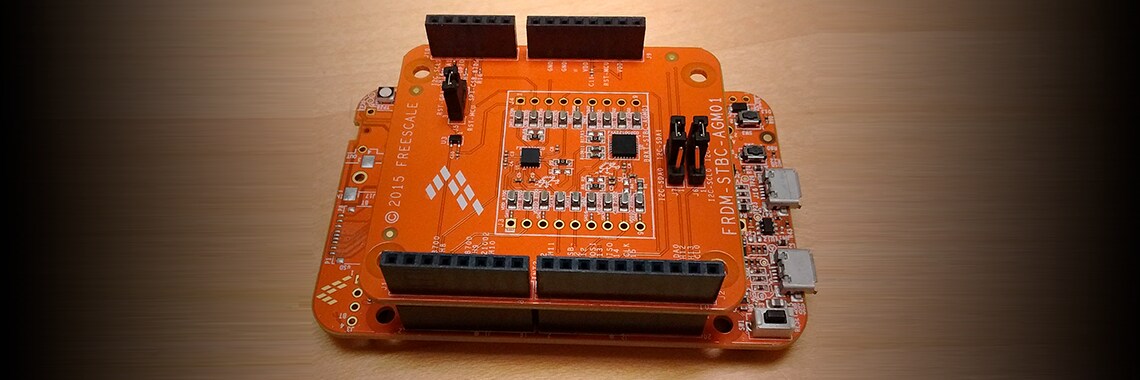
Software enablement of sensors is a must-have feature for implementation of IoT applications. Two weeks ago, the NXP
released Version 1.0 of the ISSDK (IoT Sensing Software Development Kit) into the Kinetis Software Development Kit
(KSDK) ecosystem. Depending upon your MCU, when you use the
Kinetis Expert (KEx) System Configuration
Tool to generate a version of the KSDK, you will have the option to include drivers and sample applications
for a variety ofNXP sensor components. ISSDK provides a much simpler interface than the
Intelligent Sensing Framework (ISF)
historically offered by Freescale and now NXP. Drivers are included for the following sensors:
| Sensor Part Number |
Sensor Type |
Interface |
| FXAS21002C |
Gyroscope |
SPI and I²C |
| FXLC95000CL |
Intelligent Accelerometer |
SPI and I²C |
| FXLS8471Q |
Digital Accelerometer |
SPI and I²C |
| FXOS8700C |
Digital Accelerometer and Magnetometer |
SPI and I²C |
| MAG3110 |
Digital Magnetometer |
I²C |
MMA8452Q
MMA8453Q
|
Digital Accelerometer |
I²C |
| MMA8491Q |
Digital Accelerometer |
I²C |
MMA8652FC
MMA8653FC
|
Digital Accelerometer |
I²C |
| MMA9553L |
Intelligent Accelerometer |
I²C and SPI |
Supported board combinations include:
Sample applications are included for sensor shields as a function of the sensors on each shield. NXP Sensor Fusion
for Kinetis MCUs Version 7.00 examples are provided for the 1st three rows in the table above.
Supported development environments include:
- Kinetis Design
Studio IDE v3.2
- IAR Embedded Workbench for Arm version 7.50.1
- MDK-ARM Microcontroller Development Kit (Keil)®> 5.17
- Makefiles support with GCC revision 4.9-2015-q3-update from Arm Embedded
- Atollic®> TrueSTUDIO®> 5.4.0
Pedometer examples are only supported for IAR.
Getting ISSDK is easy. Navigate to https://mcuxpresso.nxp.com/en/welcome.
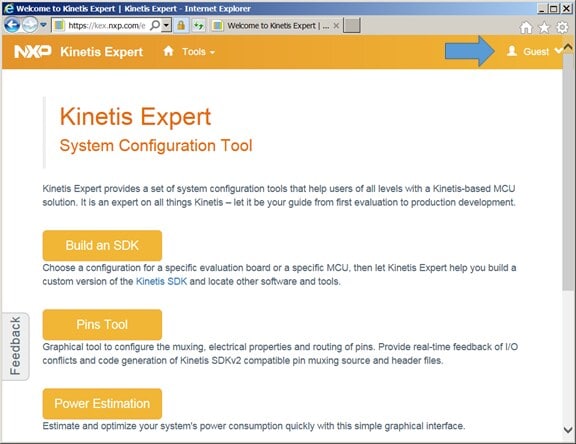
Navigate to https://mcuxpresso.nxp.com/en/welcome
Login in using the link in the upper right. Once logged in, select the "Build and SDK" button.
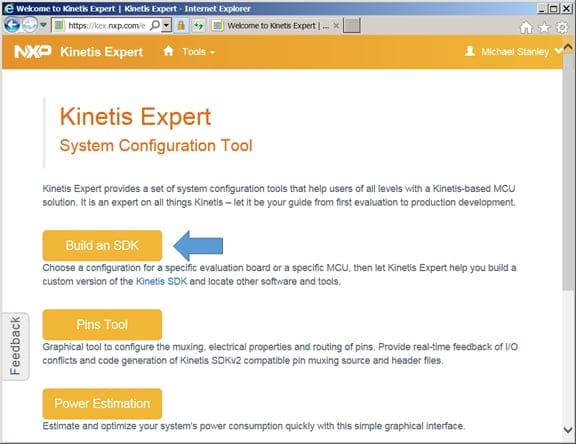
Select "Build an SDK"
You can get portions of ISSDK via either "Boards" or "Kits" in the next dialog. I suggest you select "Boards" as it
will give you content for all supported sensor shields in one step.
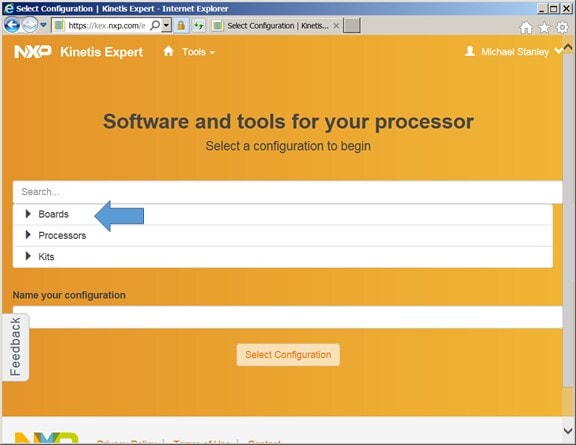
Select "Boards"
Choose your base board from the list that appears. Remember, ISSDK is not supported for all boards, only those in the
list above.
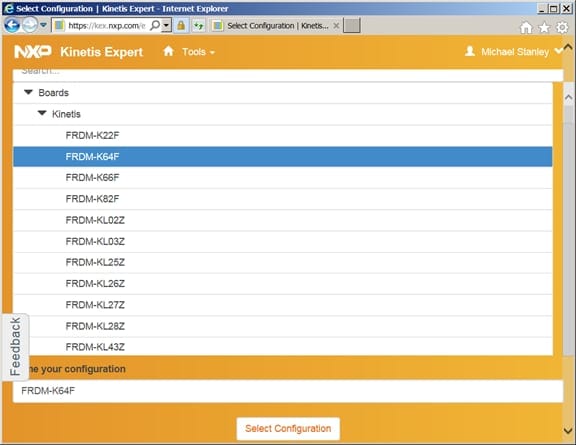
Select your base board
Now it’s time to specify your configuration. I recommend you:
- Check the ISSDK checkbox (otherwise, why are you reading this?)
- Check FreeRTOS (used for Sensor Fusion projects)
- Select "All Toolchains"
- and only then click "Build SDK Package"
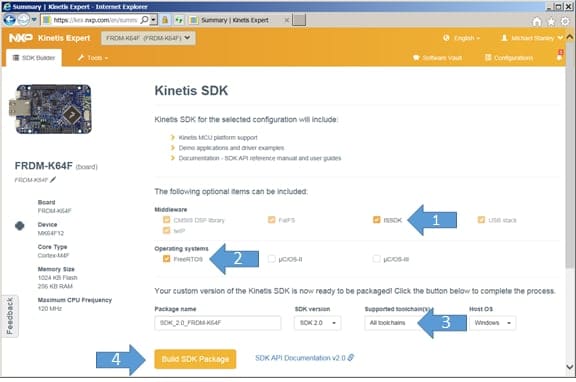
Configure options shown above
You will eventually get an email notification that your KSDK kit file is available for download. Navigate to the
software vault, update all information in your preferences to enable the download icon if it is not visible/active,
and finally click the download icon for your kit.
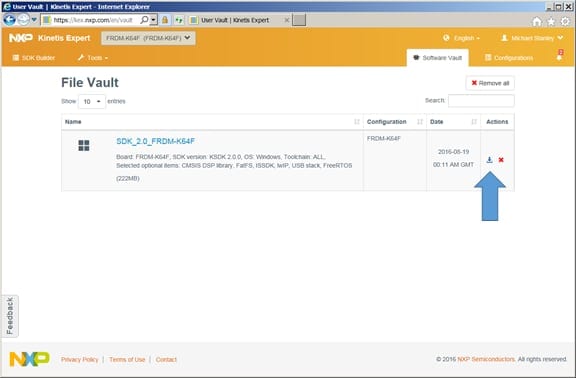
Time to download your KSDK
You will be prompted to accept the license terms.
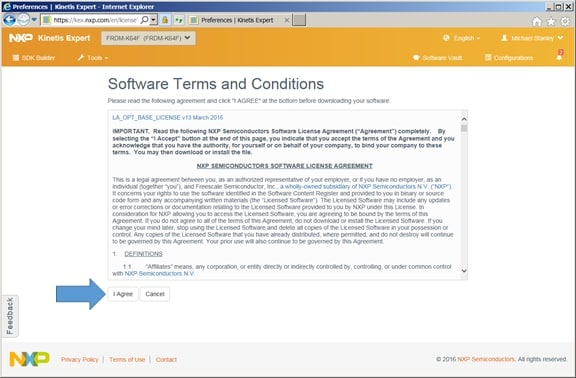
Accept License Terms
Then download to your location of choice and unzip the downloaded file.
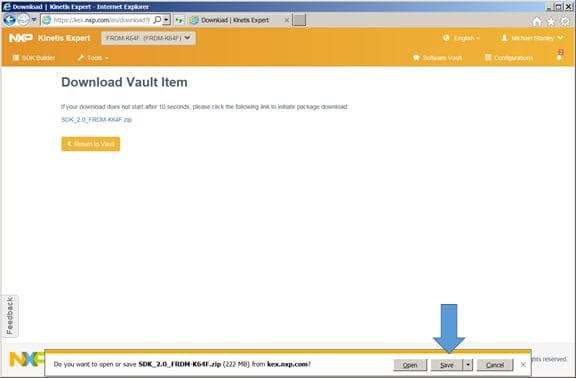
Specify where you want to install your KSDK
At this point, you should have the full ISSDK installation.
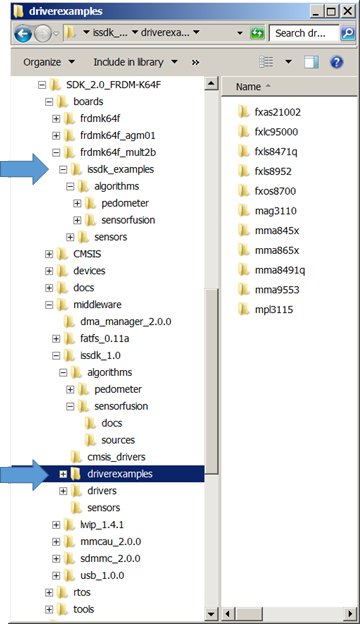
The resulting directory structure
The figure above shows FRDM-K64F KSDK structure. You might start by exploring the two folders indicated, as they
contain full sample programs. Each example in the driverexamples folder shows you how to interface with just one
device. You’ll find fuller application in the boards/issdk_examples directory.
In the event you did not create the configuration you wanted, simply delete the folder you created with the unzip
step, return to https://mcuxpresso.nxp.com/en/welcome, delete the old vault and configuration entries and start
over. Since I commonly switch between boards, I keep several KSDK variants installed under a common folder on my
hard drive.
I will dive into details of the included Sensor Fusion Version 7.00 in future postings. In the meantime, enjoy!
Michael Stanley "works" on fun sensors and systems topics.