Start Developing With S32K389EVB-Q437

上次修改时间: 2026-01-19 09:24:00支持 S32K389EVB-Q437 Evaluation Board for Automotive General Purpose

本文档内容

  • 1

    Out of the Box
  • 2

    Get Software
  • 3

    Configure Hardware
  • 4

    Build, Debug
  • 5

    Build, Run

1. Out of the Box

1.1 Get to Know the S32K389EVB-Q437 Evaluation Board

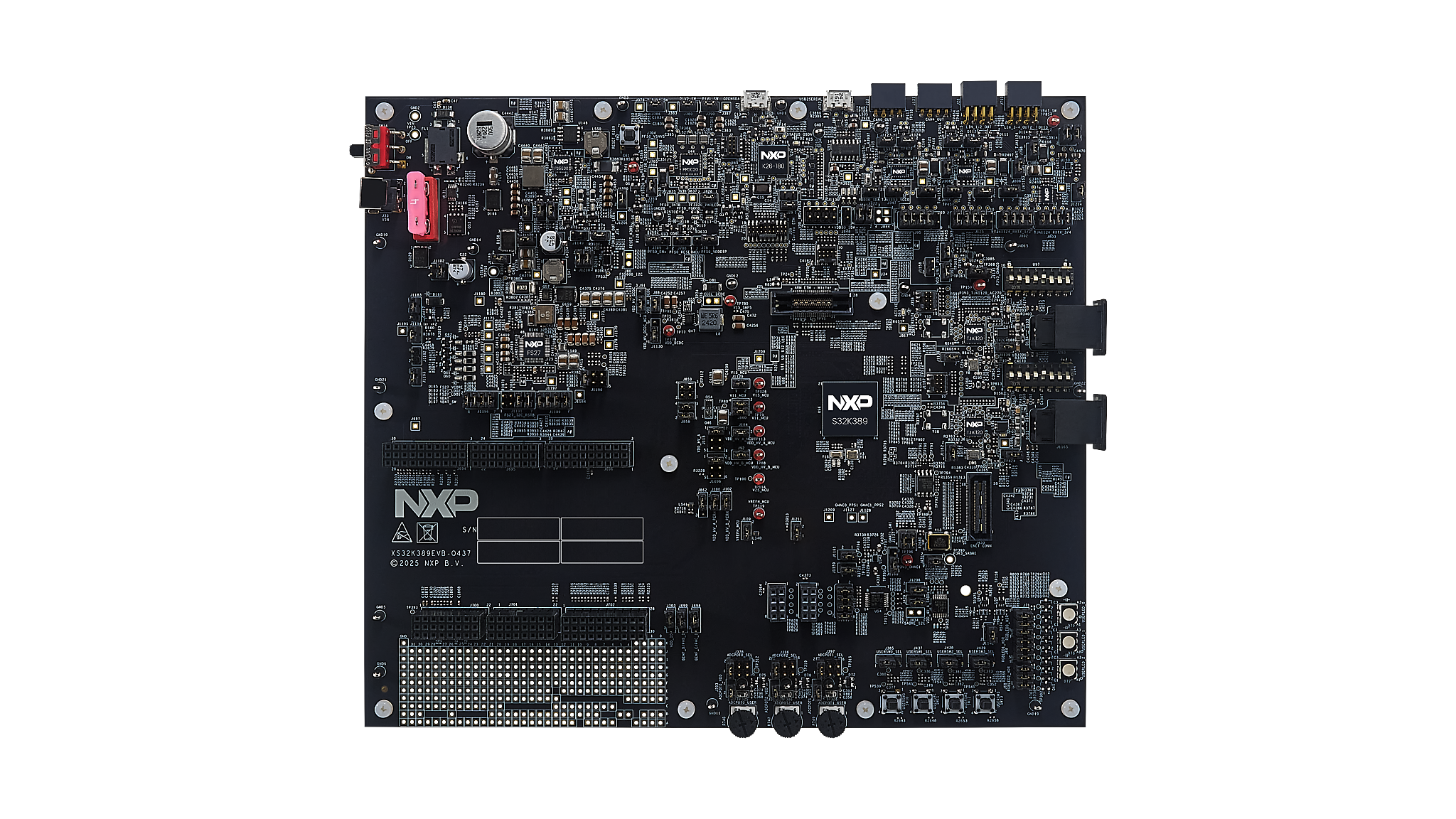
S32K389EVB-Q437 Evaluation Board Top view

S32K389EVB-Q437 Evaluation Board Top view

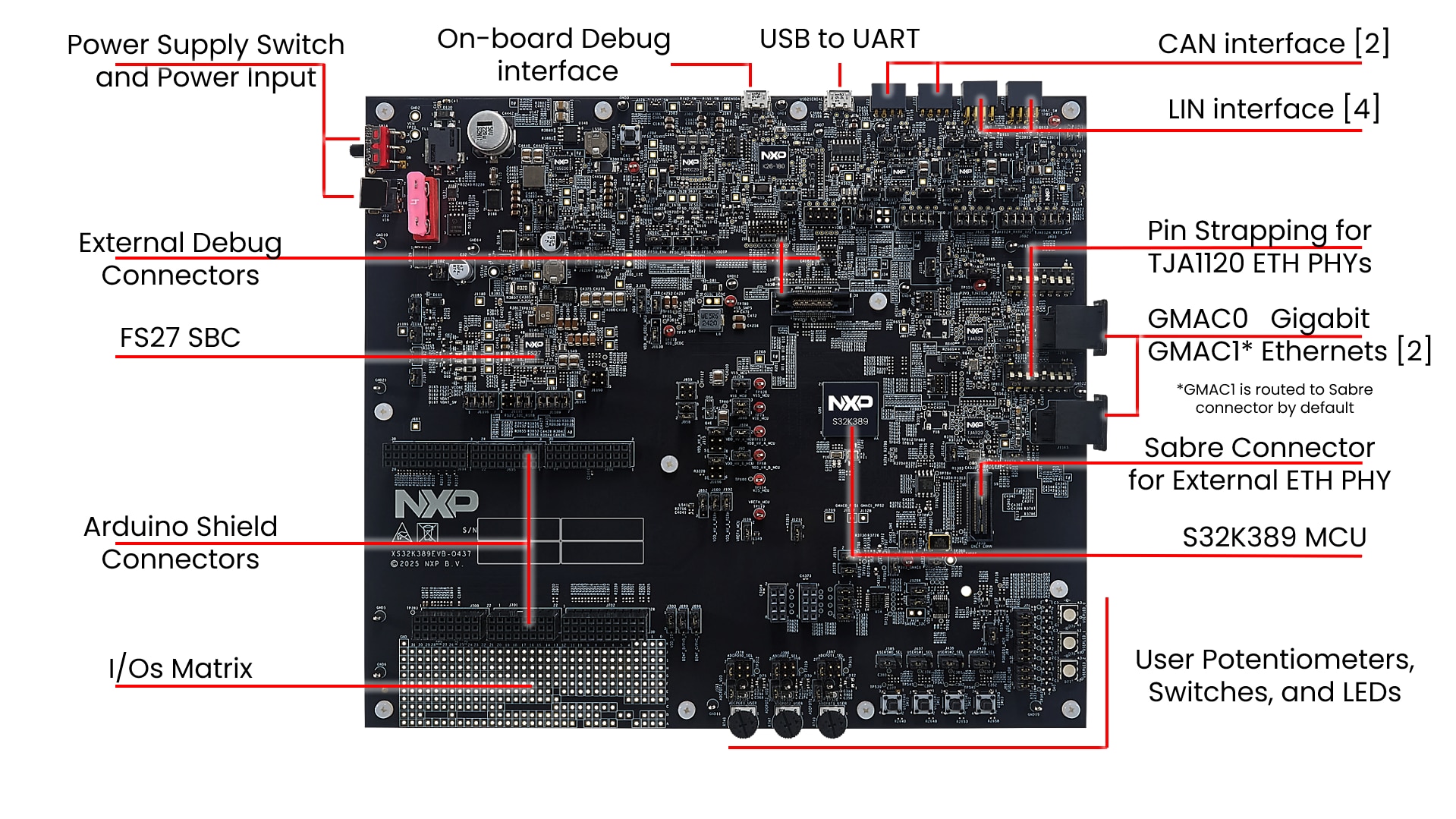
S32K389EVB-Q437 Callouts

S32K389EVB-Q437 Callouts

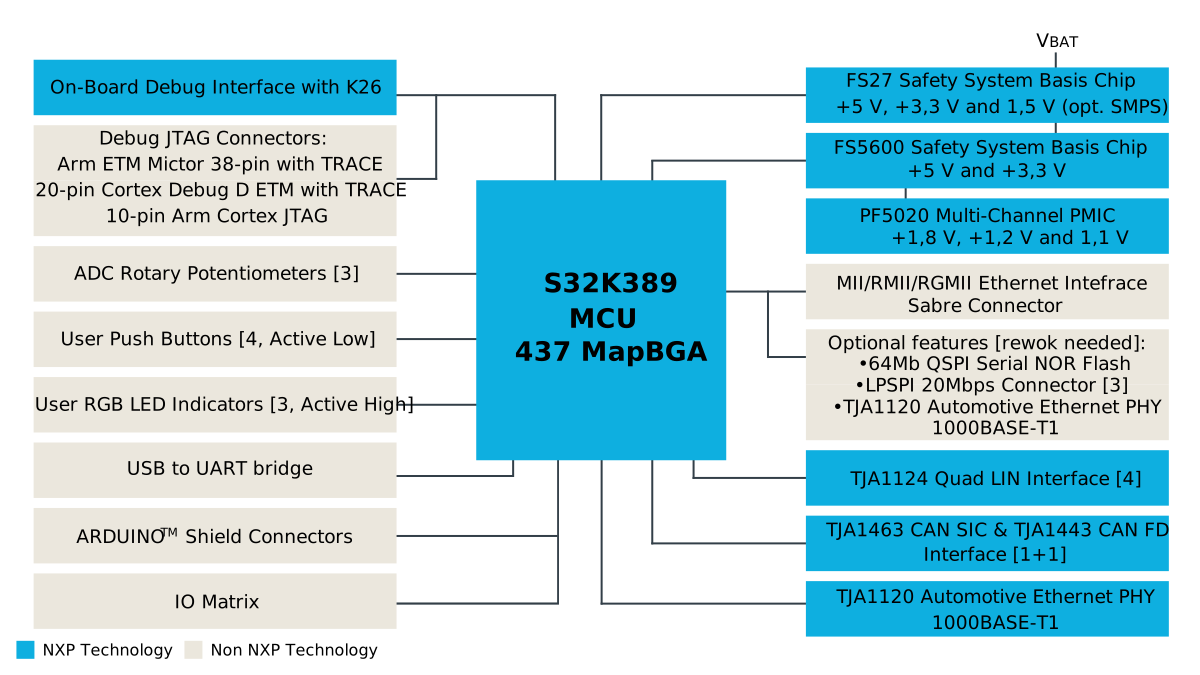
1.2 Block Diagram Features

S32K389EVB-Q437 Block Diagram

S32K389EVB-Q437 Block Diagram

2. Get Software

Sign in at nxp.com with your credentials

2.1 Get S32 Design Studio for S32 Platform IDE

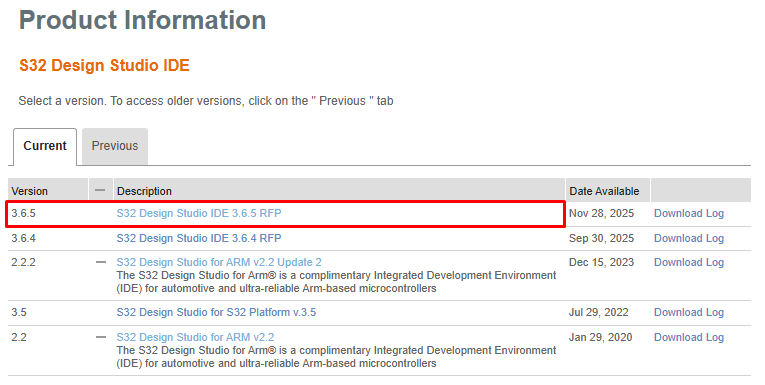
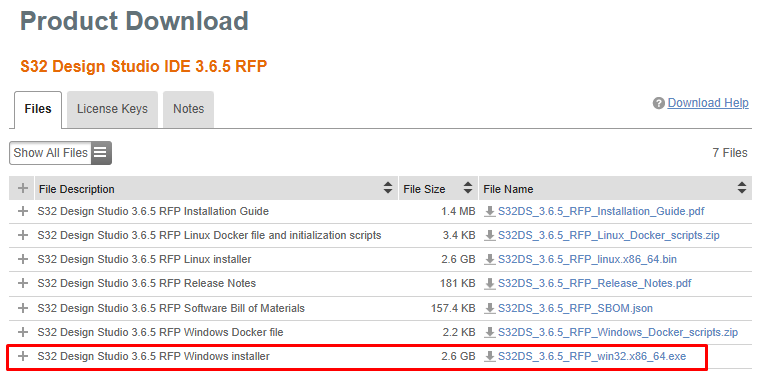
Download and Install S32 Design Studio for S32 Platform 3.6.5.

S32DS3.6.5 Download1

S32DS3.6.5 Download1

S32DS3.6.5 Download2

S32DS3.6.5 Download2

2.2 Install GCC v10.2

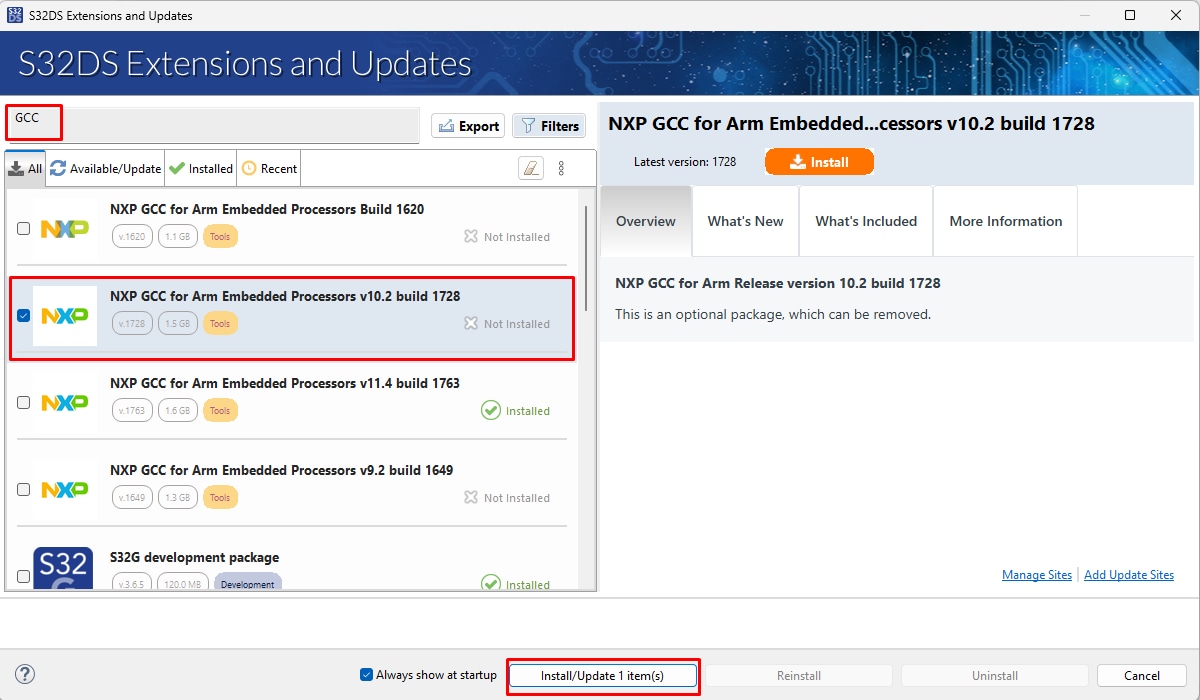
In S32DS, go to Help → S32DS Extensions and Updates from the top menu to open the S32DS Extensions and Updates dialogue.

Install GCC version v10.2 (required by current Real-Time Drivers)

Install GCC 10.2

Install GCC 10.2

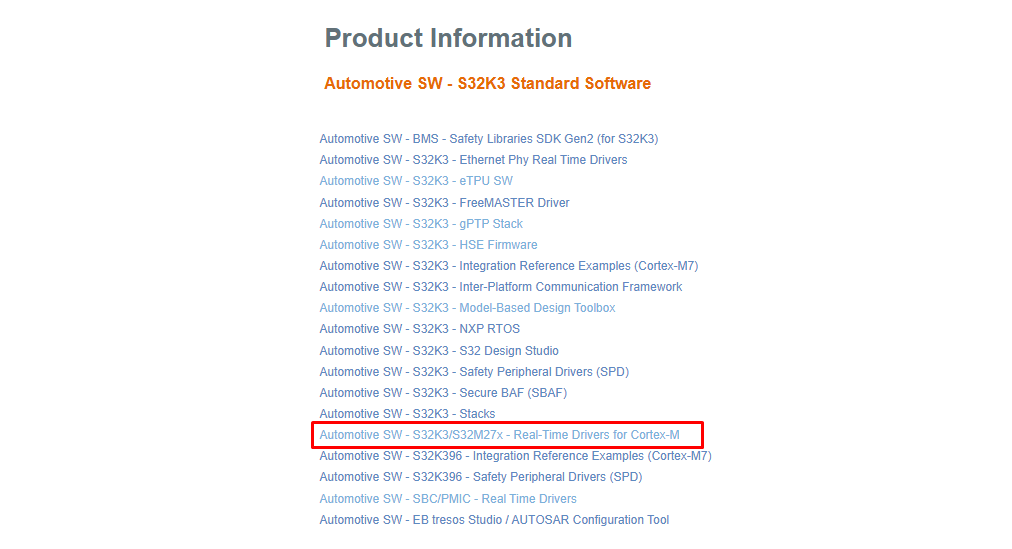
2.3 Downloading the Real-Time Drivers (RTD)

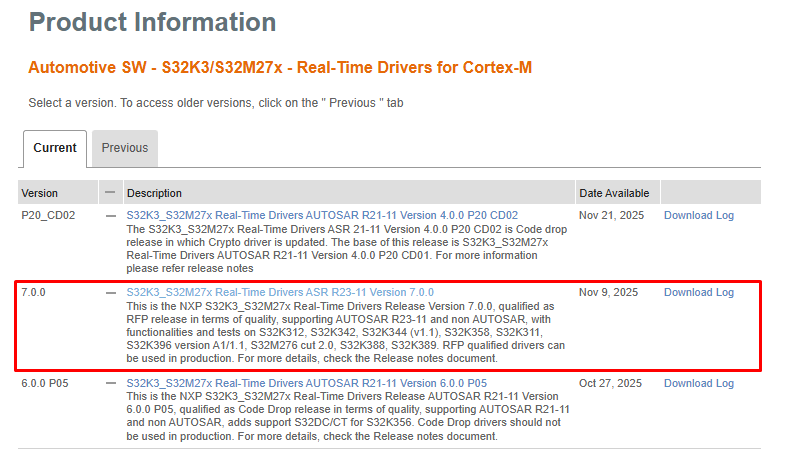
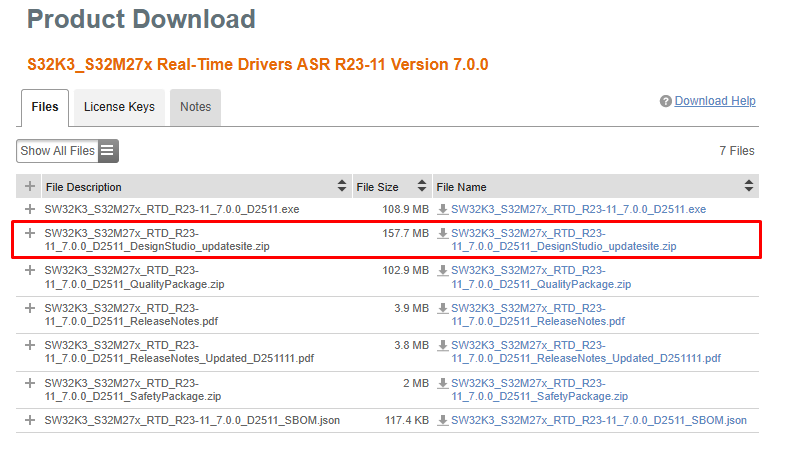
Download S32K3_S32M27x Real-Time Drivers ASR R23-11 Version 7.0.0 - updatesite package

RTD7.0 Download1

RTD7.0 Download1

RTD7.0 Download2

RTD7.0 Download2

RTD7.0 Download3

RTD7.0 Download3

2.4 Install the RTD Drivers

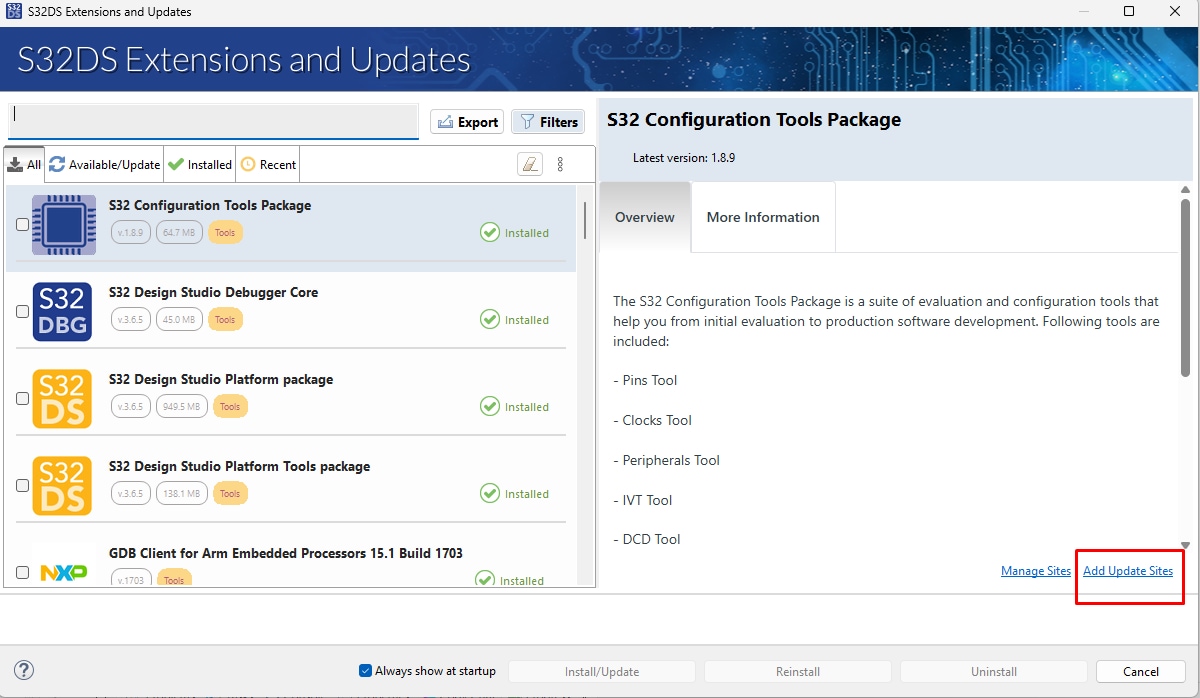
In S32DS, go to Help → S32DS Extensions and Updates from the top menu to open the S32DS Extensions and Updates dialogue. Click on Add Update Sites and browse for downloaded RTD *.zip. Optionally use drag and drop technique to add updatesite to S32DS.

Add Update Sites

Add Update Sites

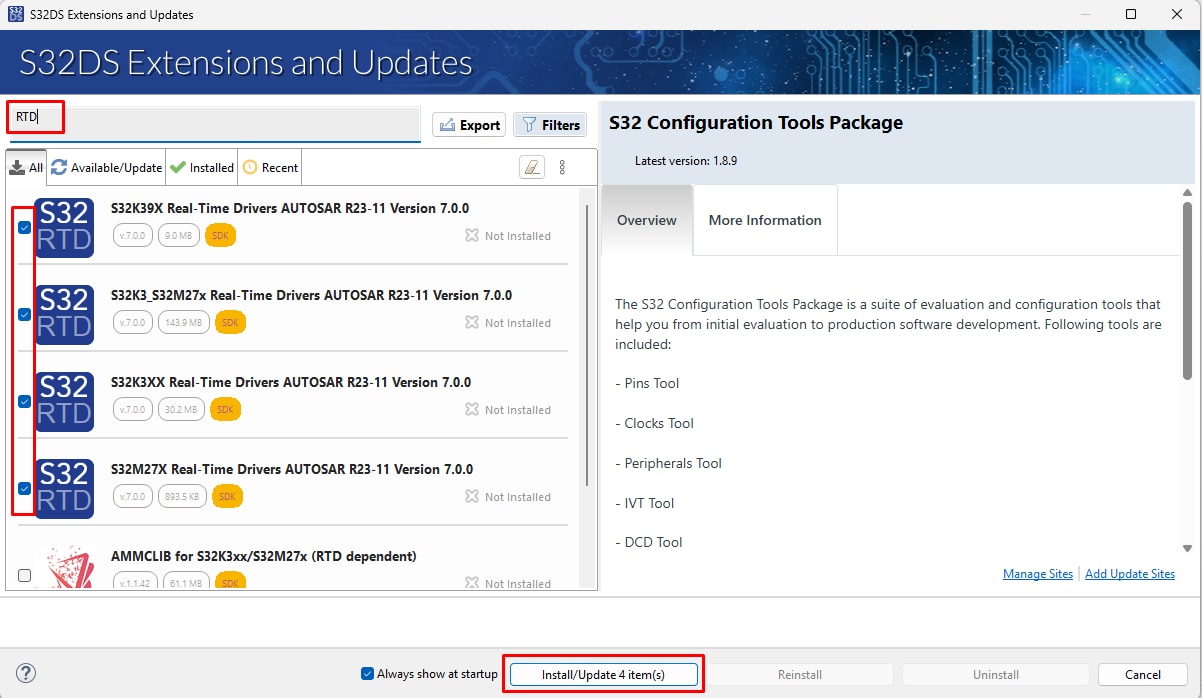
Find, select and install (all) S32K3 Real-Time Drivers ASR R23-11 Version 7.0.0.

RTD7.0 Install

RTD7.0 Install

Once installation finish, restart S32DS.

2.5 Get FreeMASTER Run-Time Debug Tool

S32K389EVB-Q437 performs better when using the FreeMASTER Run-Time Debugging Tool.

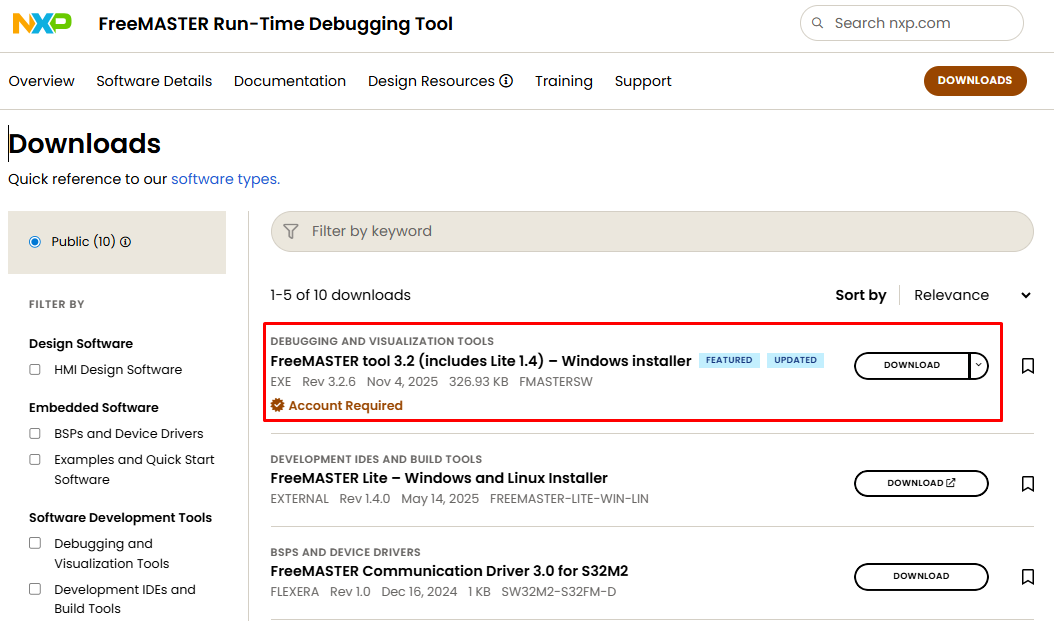
Download and install FreeMASTER Run-Time Debugging Tool

FreeMASTER app download

FreeMASTER app download

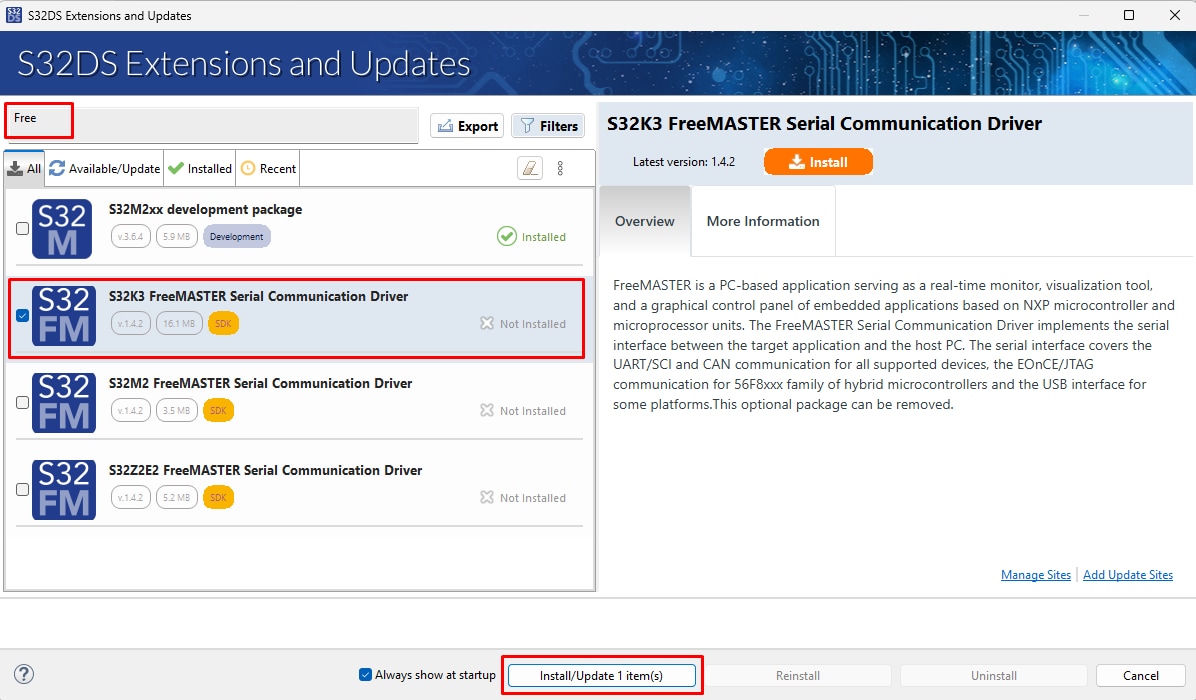
On MCU side, we will need FreeMASTER Communication driver

In S32DS, go to Help → S32DS Extensions and Updates from the top menu to open the S32DS Extensions and Updates dialogue.

Select and install the FreeMASTER Communication driver.

FreeMASTER driver install

FreeMASTER driver install

Install FreeMASTER Communication driver

Once installation finishes, restart the S32DS.

3. Configure Hardware

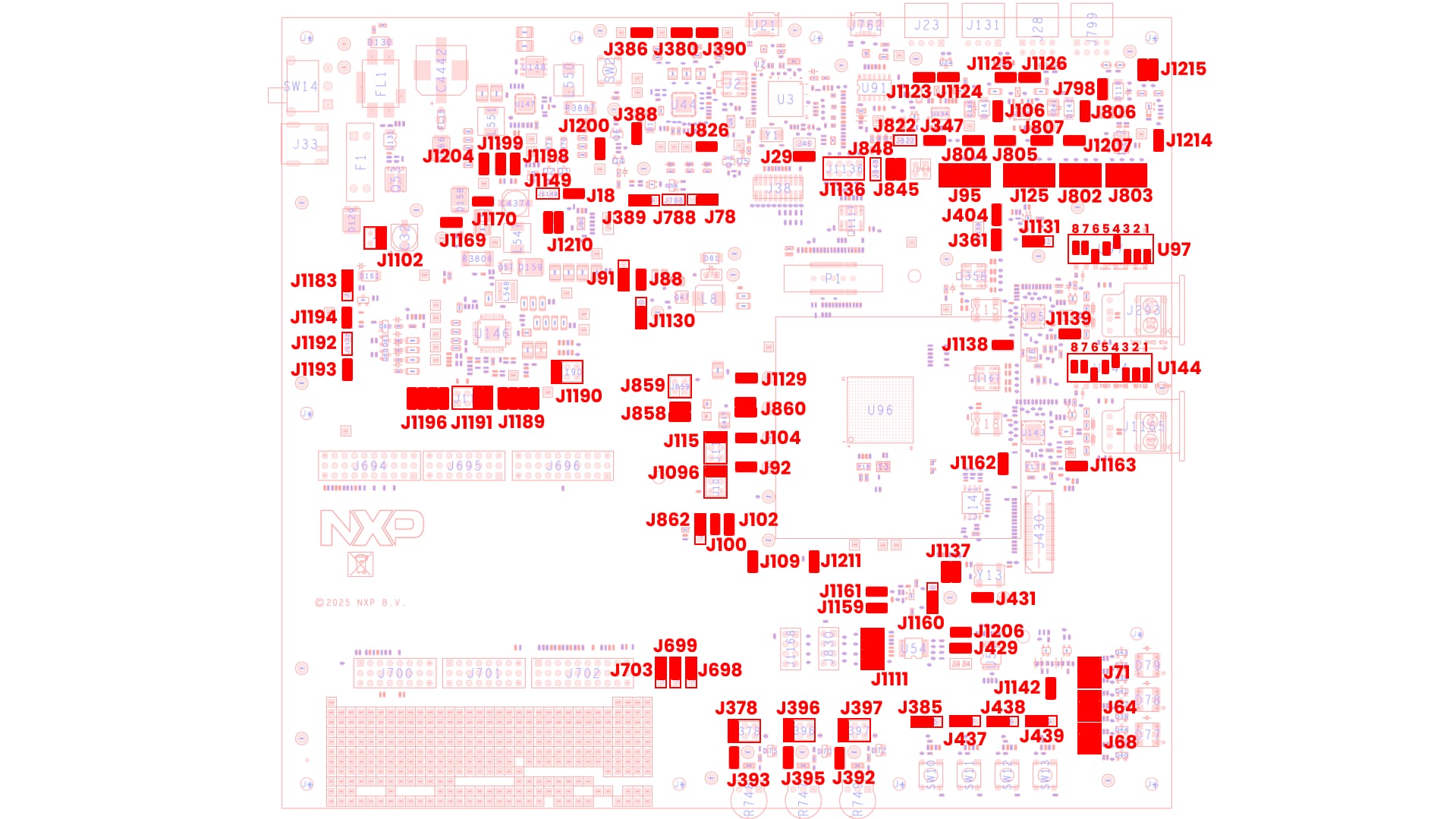
3.1 Set Up Jumpers to the Default State

S32K389EVB-Q437 Jumpers

S32K389EVB-Q437 Jumpers
Jumper State Notes
VBAT Input J1102 1-2 Over-voltage protection, under-voltage protection, anti-reverse connection protection enabled.
J1214 CLOSED Enable input of the unidirectional power switch U150.
J1215 1-3, 2-4 Connect the input and output of the unidirectional power switch U150 respectively.
FS27/SBC Power Supply J1169 CLOSED VBAT is routed to VBAT_FS27.
J1170 CLOSED VBAT_FS27 is routed to FS27 interface and VSUP domain.
J1183 1-2 FS27 Debug option selection. FS27_VDEBUG derived from FS27_VBOS.
J1189 1-2, 3-4, 5-6, 7-8 SPI connections between FS27 and the MCU (LPSPI3).
J1190 1-2 FS27 WAKE1 routed to PTA8(EXTWAKE) of the MCU.
J1191 5-6, 7-8 FS27_RESET and FS27_WAKE2 both routed to RESET_MCU.
J1192 OPEN FS27_GPIO1 signal
J1193 CLOSED FS27 voltage domain LED indicators enabled.
J1194 CLOSED FS27 GPIO2 routed to PTA9(PGOOD) of the MCU.
J1196 1-2, 3-4, 5-6, 7-8 FS27 FS0B and FS1B connected to the MCU, FS27 FCCU connections between FS27_FCCU to the FCCU MCU signals.
FS5600 J18 CLOSED FS5600 voltage domain LED indicators enabled.
J1149 OPEN RESET_MCU disconnected from FS5600 PGOOD signals.
J1198 CLOSED FS5600 EN1 routed to FS27_VPRE with pull-up resistor.
J1199 CLOSED FS5600 EN2 routed to FS27_VPRE with pull-up resistor.
J1200 CLOSED P3V3SW_OUT1 routed to FS5600 SW2 switching regulator - 3.3 V, 10 A.
J1204 CLOSED P5V0SW_OUT routed to FS5600 SW1 switching regulator - 5 V, 3 A.
J1210 1-2, 3-4 FS5600 I²C signals connected to the MCU.
PF5020 J78 1-2 PF5020 OTP programming input supply voltage = GND.
J380 CLOSED PF50_SW1OUT_1V2 jumper enables the 1.2 V output.
J386 CLOSED PF50_SW1OUT_1V8 jumper enables the 1.8 V output.
J388 CLOSED P5V0SW_OUT power supply for the PF5020 VIN.
J389 1-2 PF5020 output enable power sources via pull-up.
J390 CLOSED PF50_SW1OUT_1V1 jumper enables the 1.1 V output.
J788 OPEN PF5020 RESET disconnected from RESET_MCU signal.
J826 CLOSED PF5200 voltage domain LED indicators enabled.
S32K389 MCU Power Supply J88 CLOSED Connect Input voltage to VDD_DCDC of the MCU.
J91 1-2 Choose P3V3SW_OUT1 as the source for VDD_DCDC of the MCU.
J92 CLOSED Connection between selected VDD_HV_B and the VDD_HV_B_MCU.
J100 CLOSED VDD_HV_A_PERH voltage reference per VDD_HV_A peripherals.
J102 CLOSED VDD_HV_B_PERH voltage reference per VDD_HV_B peripherals.
J104 CLOSED Connection between selected VDD_HV_A and the VDD_HV_A_MCU.
J109 CLOSED Connection between VDD_HV_A_MCU and the VDD_VREFH_MCU.
J115 1-2 FS27_LDO1_OUT connected to VDD_HV_A. 5-volt output.
J858 1-2, 3-4 FS27_VCORE connected to V15 MCU 1.5 Volts output.
J859 OPEN FS27_VCORE disconnected from V15_SMPS switching regulator.
J860 1-2, 3-4 V11 MCU connection. This jumper enables the connection between V11 supply and MCU.
J862 1-2 Voltage reference per VDD_REFH_MCU peripherals derived from VDD_HV_A.
J1096 1-2 FS27_LDO2_OUT connected to VDD_HV_B. 3.3 volts output.
J1129 CLOSED V15 MCU connection. This jumper enables the connection between V15 supply and MCU.
J1130 1-2 In case SMPS is not required, VDD_DCDC must be connected to VDD_HV_B_MCU.
JTAG J29 CLOSED Voltage supply from VDD_HV_A_PERH to VDD_SWD/JTAG to supply JTAG interfaces.
J1211 CLOSED Connect the RESET_MCU signal to the MCU PTA5 pin.
ON-board debugger J822 OPEN Enables the power supply of the VDDIO_SDA with the VDD_HV_A_PERH.
J848 OPEN Disable the SDA reset from the RESET_MCU signal.
J1136 OPEN On-board debugger JTAG signals disconnected from MCU.
SABRE Connector J429 CLOSED This jumper enables the connection between VDD_HV_A_PERH and VDD_HV_A_SABRE.
J431 CLOSED Enables the supply from P3V3_GMAC1 to SABRE connector.
J1111 1-2, 3-4, 5-6, 7-8 MCU LPSPI4 signals connected to the SABRE connector.
J1137 1-2, 3-4 GMAC1 MDC function connected to PTA28, GMAC1 MDIO function connected to PTA29.
J1206 CLOSED MCU LPSPI4 CS1 signal connected to the SABRE connector.
GMAC0 TJA1120_A J361 CLOSED Connect the input of the unidirectional power switch U124.
J404 CLOSED Enable the input of the unidirectional power switch U124.
J1131 1-2 Bypass the output of the unidirectional power switch U124.
J1138 CLOSED Connect the PTB4 of the MCU to the interrupt pin of the TJA1120_A.
J1139 CLOSED Connect the PTD13 of the MCU to the wake pin of the TJA1120_A.
J1142 CLOSED Connect the PTG12 of the MCU to the reset pin of the TJA1120_A.
U97-1 + GMAC0 pin strapping Config0 - pull-up.
U97-2 + GMAC0 pin strapping Config1 - pull-up.
U97-3 + GMAC0 pin strapping Config2 - pull-up.
U97-4 - GMAC0 pin strapping Config3 - pull-down.
U97-5 0 GMAC0 pin strapping Config4 - open.
U97-6 + GMAC0 pin strapping Config5 - pull-up.
U97-7 0 GMAC0 pin strapping Config6 - open.
U97-8 0 GMAC0 pin strapping TJA1120_RST - open.
GMAC1 TJA1120_B J1159 CLOSED Connect the input of the unidirectional power switch U142.
J1160 1-2 Bypass the output of the unidirectional power switch U142.
J1161 CLOSED Enable the input of the unidirectional power switch U142.
J1162 CLOSED Connect the PTB26 of the MCU to the interrupt pin of the TJA1120_B.
J1163 CLOSED Connect the PTA31 of the MCU to the wake pin of the TJA1120_B.
U144-1 + GMAC1 pin strapping Config0 - pull-up.
U144-2 + GMAC1 pin strapping Config1 - pull-up.
U144-3 + GMAC1 pin strapping Config2 - pull-up.
U144-4 - GMAC1 pin strapping Config3 - pull-down.
U144-5 0 GMAC1 pin strapping Config4 - open.
U144-6 + GMAC1 pin strapping Config5 - pull-up.
U144-7 0 GMAC1 pin strapping Config6 - open.
U144-8 0 GMAC1 pin strapping TJA1120_RST - open.
CAN0 Interface J95 1-2, 3-4, 5-6, 7-8, 9-10 Connect the CAN0 control pin of the MCU to the CAN PHY U134 TJA1463.
J106 CLOSED Enables the supply of the CAN0 transceiver from VBAT.
J347 CLOSED Enable 5-volt supply from P5V0SW_OUT to VCC transceiver pin.
J804 CLOSED Select the supply voltage for VIO pin - VDD_HV_A_PERH.
J1123 CLOSED Connect the CAN0_H with 60 Ω terminal resistor.
J1124 CLOSED Connect the CAN0_L with 60 Ω terminal resistor.
CAN4 Interface J125 1-2, 3-4, 5-6, 7-8, 9-10 Connect the CAN4 control pin of the MCU to the CAN PHY U135 TJA1443.
J805 CLOSED Enable 5-volt supply from P5V0SW_OUT to VCC transceiver pin.
J806 CLOSED Enables the supply of the CAN0 transceiver from VBAT.
J807 CLOSED Select the supply voltage for VIO pin - VDD_HV_B_PERH.
J1125 CLOSED Connect the CAN4_H with 60 Ω terminal resistor.
J1126 CLOSED Connect the CAN4_L with 60 Ω terminal resistor.
LIN Interface J798 CLOSED Connect VBAT to the LIN PHY U87 TJA1124.
J802 1-2, 3-4, 5-6, 7-8 Connect the LPUART9_TX, RX and LPUART12_TX, RX to LIN1 and LIN2 of the LIN PHY U87 TJA1124.
J803 1-2, 3-4, 5-6, 7-8 Connect the LPUART13_TX, RX and LPUART8_TX, RX to LIN1 and LIN2 of the LIN PHY U87 TJA1124.
J1207 CLOSED Connect VDD_HV_A_PERH to the VIO of the LIN PHY U87 TJA1124.
USB2SERIAL Bridge J845 1-2, 3-4 Connect the LPUART11_TX, RX to the USB2UART converter U91 MCP2221.
User Peripherals J64 1-2, 3-4, 5-6 Connect the GPIOs of the MCU to the RGB LED D78 control pins.
J68 1-2, 3-4, 5-6 Connect the GPIOs of the MCU to the RGB LED D77 control pins.
J71 1-2, 3-4, 5-6 Connect the GPIOs of the MCU to the RGB LED D79 control pins.
J378 1-2 Connect PTA11 of the MCU to the ADCPOT0_USER resistor.
J385 1-2 Connect the PTA1 of the MCU to the User Switch 0.
J392 CLOSED Connect the VDD_REFH_PERH to the ADCPOT1_USER resistor.
J393 CLOSED Connect the VDD_REFH_PERH to the ADCPOT0_USER resistor.
J395 CLOSED Connect the VDD_REFH_PERH to the ADCPOT2_USER resistor.
J396 1-2 Connect PTA18 of the MCU to the ADCPOT2_USER resistor.
J397 1-2 Connect PTA17 of the MCU to the ADCPOT1_USER resistor.
J437 1-2 Connect the PTB8 of the MCU to the User Switch 1.
J438 1-2 Connect the PTA23 of the MCU to the User Switch 2.
J439 1-2 Connect the PTE11 of the MCU to the User Switch 3.
ARDUINO Connector J698 1-2 BEMF_C/PHC_I signal routed to PTE0 pin.
J699 1-2 BEMF_B/PHB_I signal routed to PTE1 pin.
J703 1-2 VDD_IO pin connected to VDD_HV_A_PERH.

3.2 Board Power-Up

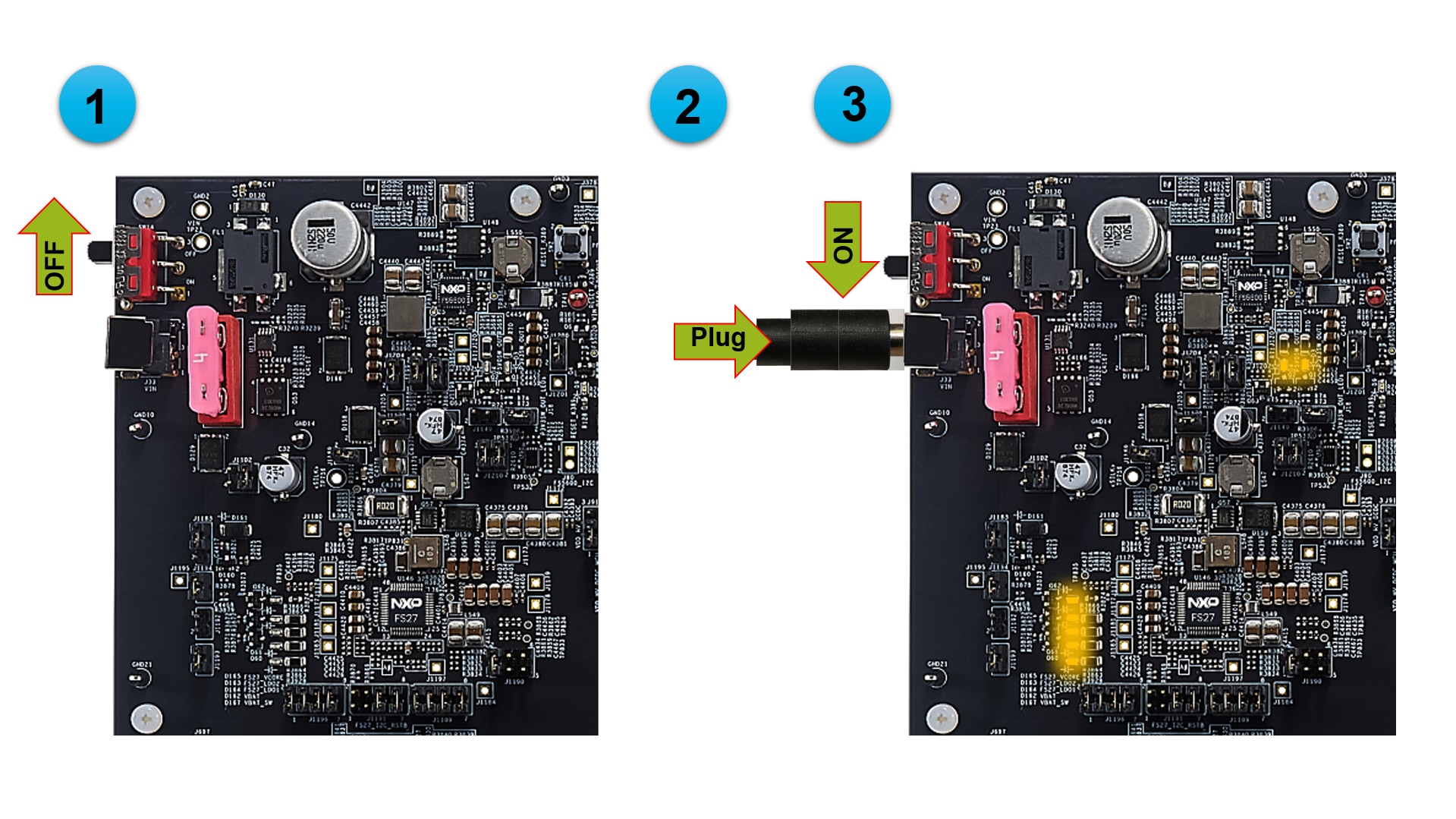
Switch SW14 to the OFF position (fully to the top).

Connect 12 V power supply adapter and switch SW14 to the ON position (fully to the down).

S32K389EVB-Q437 Power-up

S32K389EVB-Q437 Power-up

When power is applied to the EVB, orange LEDs adjacent to the voltage regulators show the presence of the supply voltages.

3.3 Debugger Connection

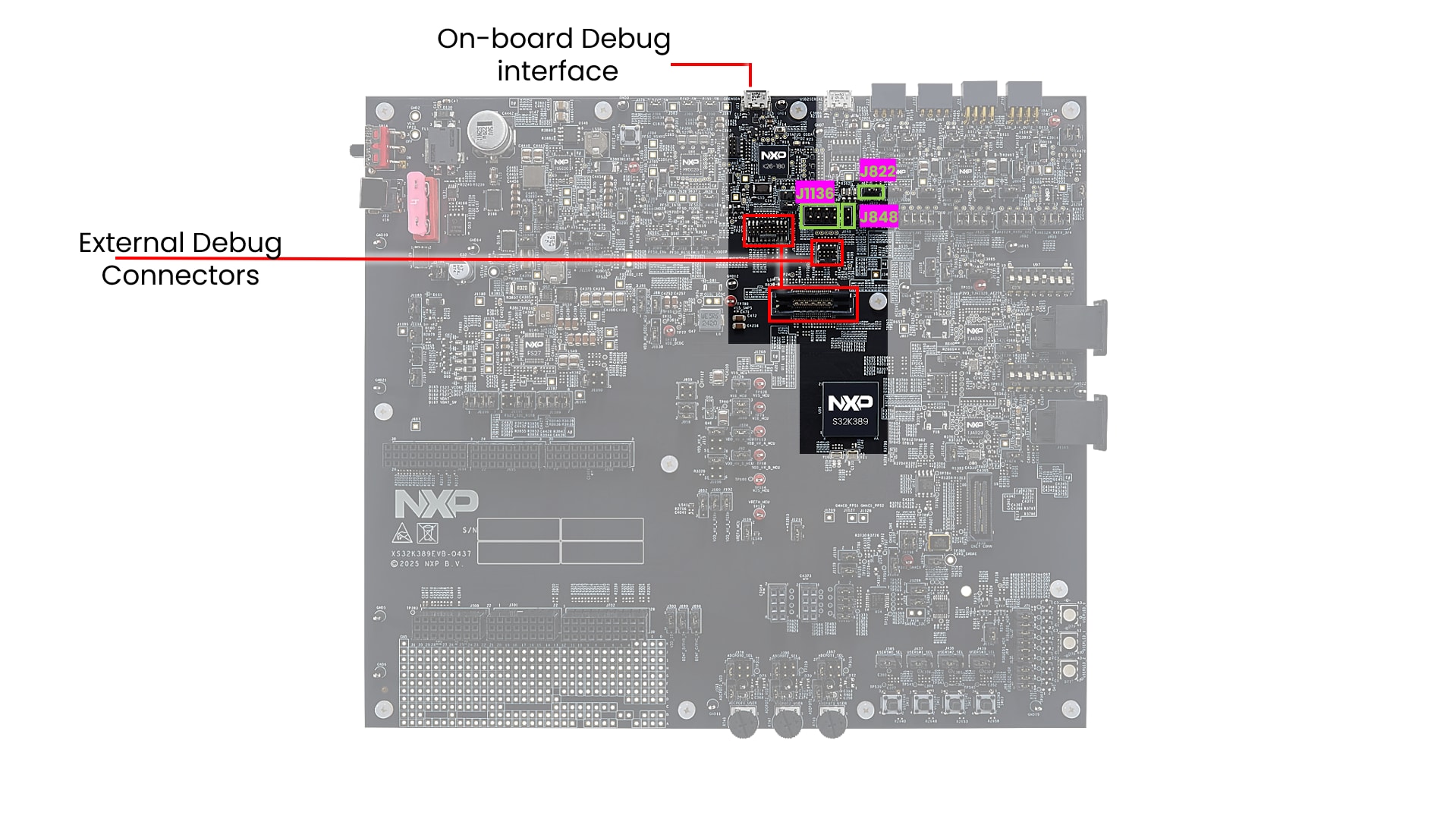
The S32K389EVB-Q437 is configured by default for use with an external debugger.

For programming MCU use either J1117 10-pin (0.05") JTAG connector, J38 20-pin (0.05") JTAG connector or P1 38-pin Mictor ETM trace connector.

S32K389EVB-Q437 Debug Interfaces

S32K389EVB-Q437 Debug Interfaces

For use with on-board S32K3 debug interface, place the jumpers to J822, J848 and J1136 (1-2, 3-4, 5-6, 7-8) and connect a micro-USB cable to the J21 connector.

4. Build, Debug

Let's take your S32K389EVB-Q437 evaluation board for a test drive.

4.1 Create New S32DS Project from Scratch

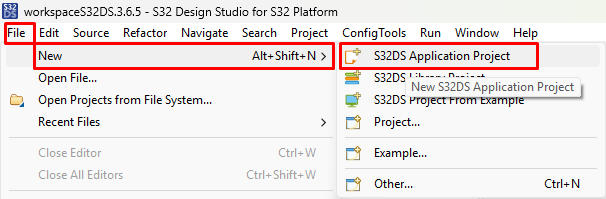
Start S32 Design Studio 3.6.5. Go to menu → File → New → S32DS Application Project

New project

New project

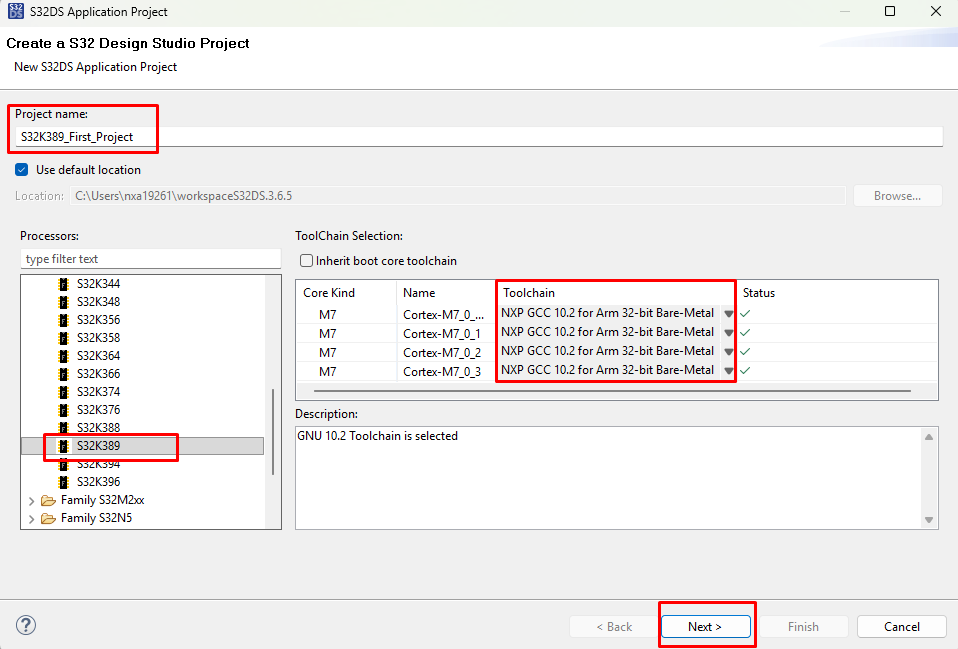
Write the new project name (without spaces) and select S32K389 derivative.

Select GCC version 10.2 instead default version 11.4. Installed S32K3 RTD version 7.0 was created for GCC toolchain 10.2.

S32K389 First project

S32K389 First project

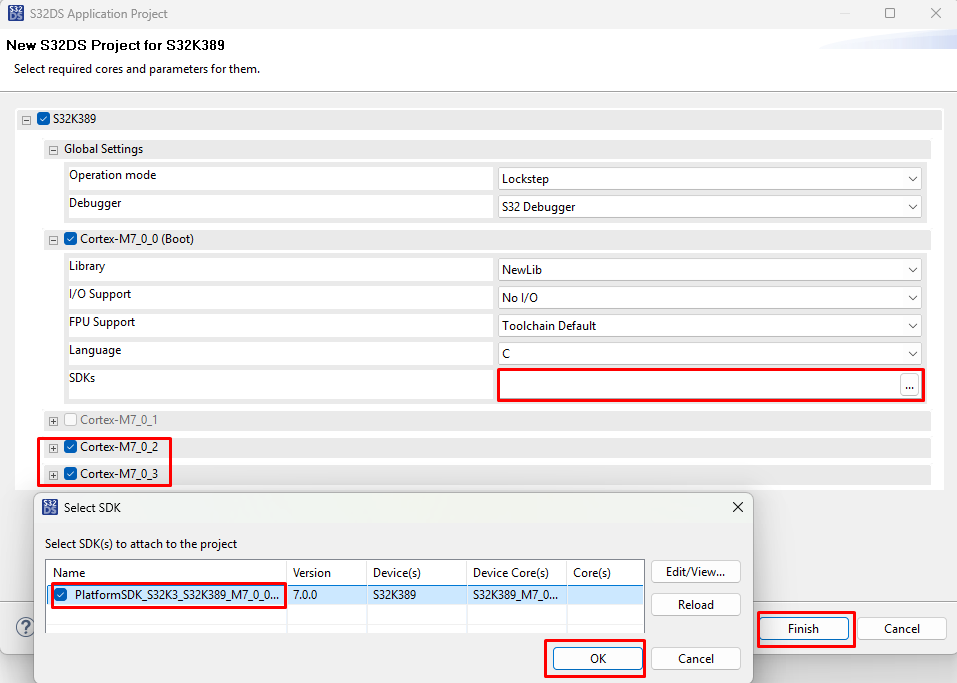
Select the SDK (S32K3 RTD version 7.0) for main Core 0. Core 1 is the checker core for Core 0 in the lockstep configuration. Optionally you may select SKD also for Cores 2 and 3.

S32K389 Select SDK

S32K389 Select SDK

4.2 Set Pins

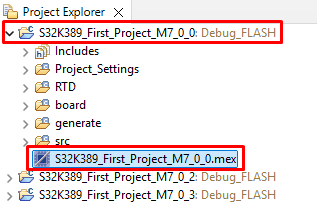
1. Double-click on project mex file

S32K389 Mex file

S32K389 Mex file

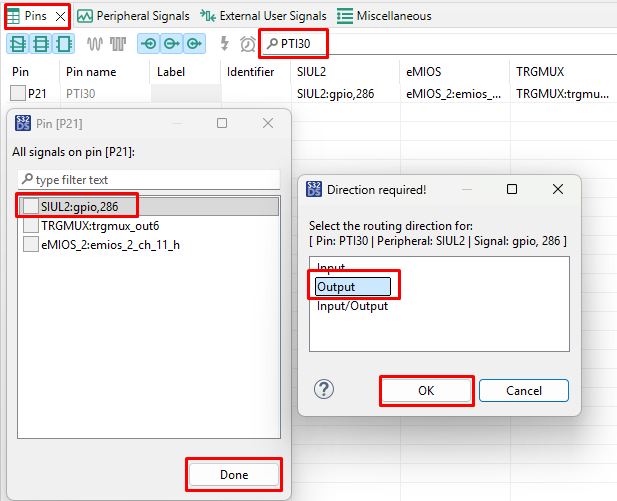
2. Set PTI30 pin (connected to Green LED) as GPIO Output

S32K389 Green LED configuration1

S32K389 Green LED configuration1

3. Define PTI30 Identifier (without spaces). For example "GREEN_LED". Select "Disable" for Pad keep enable option.

S32K389 Green LED configuration2

S32K389 Green LED configuration2

4.3 Add Driver and Generate Configuration Files

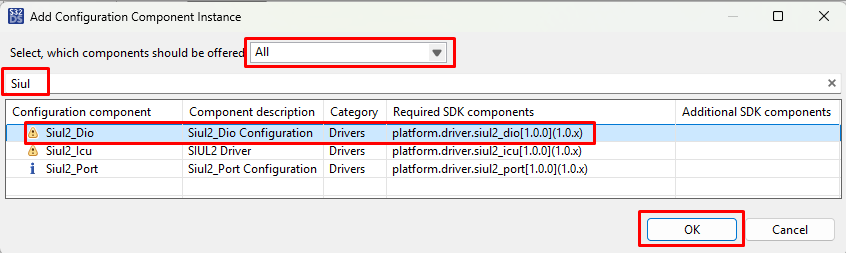
Switch to the Peripherals perspective and add Siul2_Dio driver to the application.

Peripherals perspective

Peripherals perspective

Add Siul2 Dio driver

Add Siul2 Dio driver

Ensure that you configure the appropriate project and click on the Update Code button for generating configuration files.

S32K389 Update code

S32K389 Update code

Wait until Update Code finish. The status bar is in bottom right corner.

Update Code status

Update Code status

4.4 Edit Code

1. Return back to the C/C++ perspective.

C Cpp perspective

C Cpp perspective

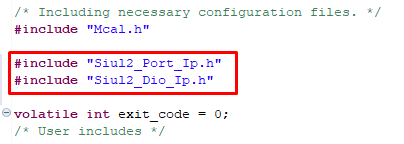
2. Edit main.c file in src folder and include the Port and Dio drivers.

Include drivers

Include drivers

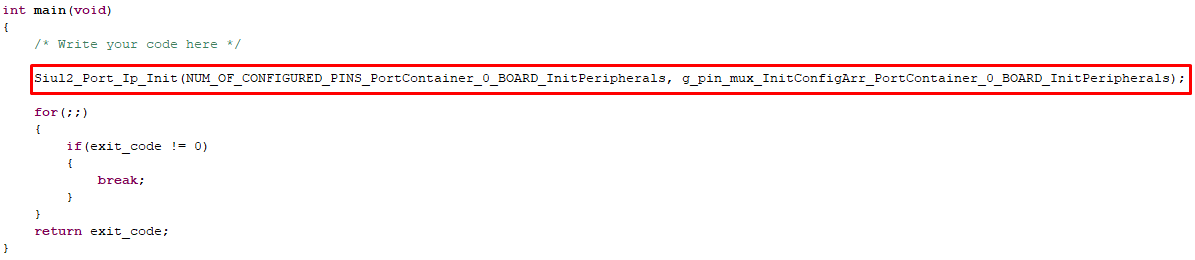
3. Enter the command line for pin initialization. You may copy the parameters from Siul2_Port_Ip_Cfg.h file from board folder.

Siul2 Port Ip Init

Siul2 Port Ip Init

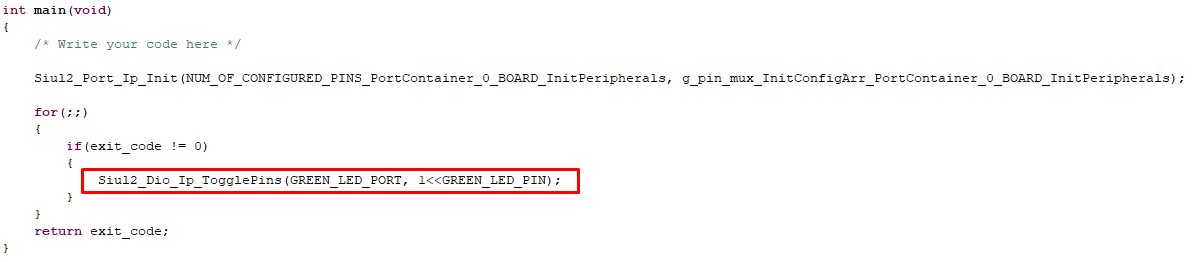
4. And finally also the command for toggling with GREEN_LED pin

Siul2 Dio Ip TogglePins

Siul2 Dio Ip TogglePins

5. Build, Run

5.1 Upload Software to MCU

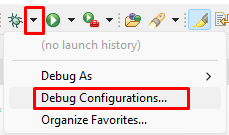
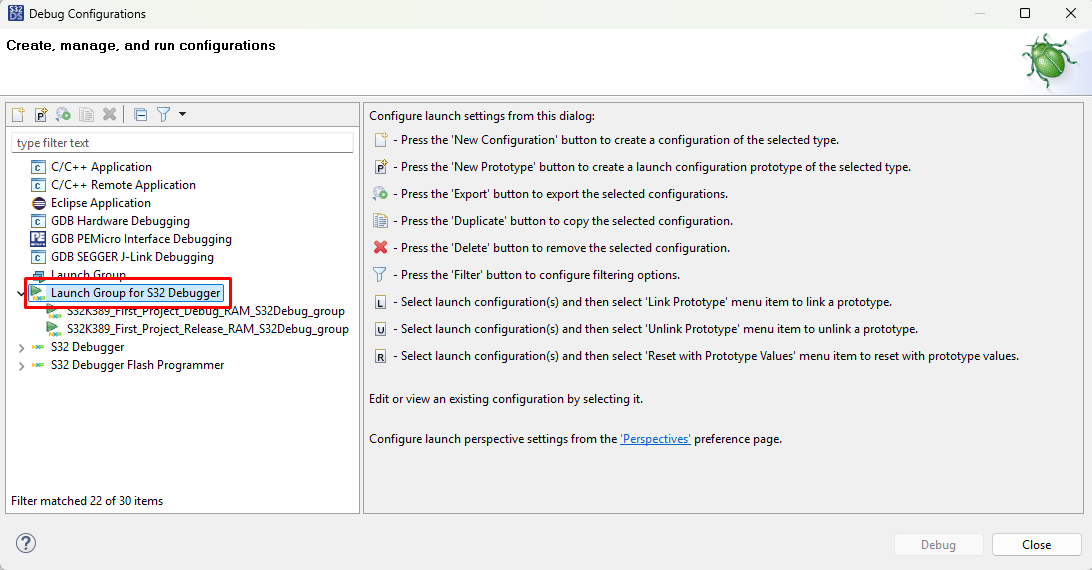
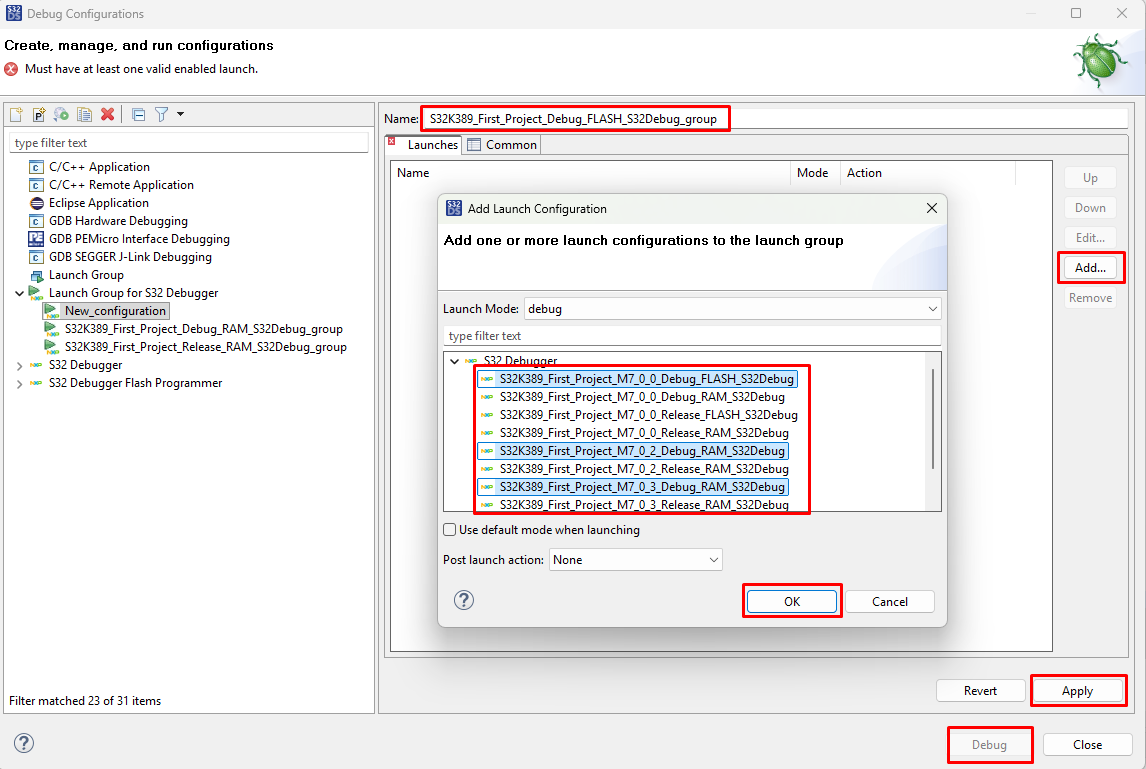
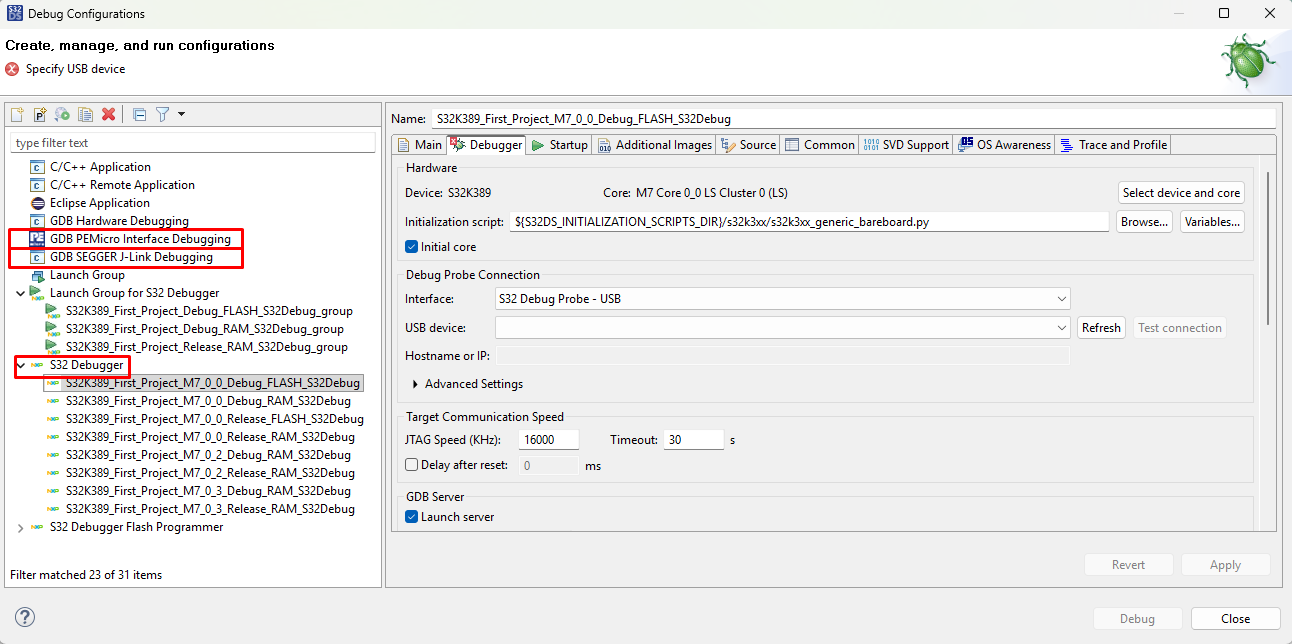
Use Debug Configuration menu and select Launch Group configuration for building and uploading software projects for all Cores.

Debug configuration

Debug configuration

New Lanch Group

New Lanch Group

S32K389 New Debug group

S32K389 New Debug group

Debug Interface configuration

Debug Interface configuration

5.2 Debug Code

The S32DS will switch into the Debug perspective where you Step Over (F6) your code.

Step over

Step over

The green LED will now be toggling in an endless loop.

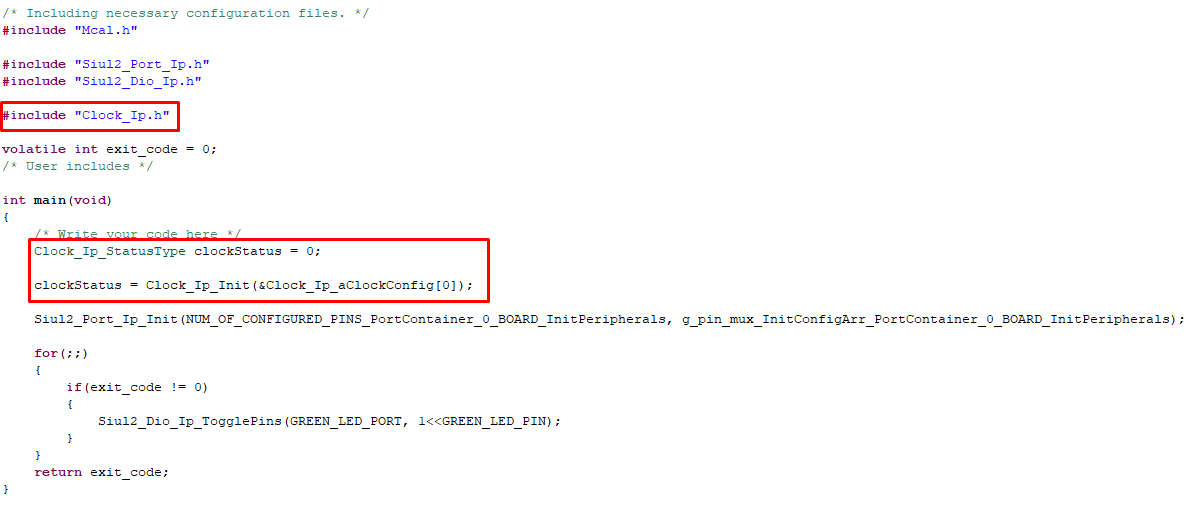
5.3 Optional - Add Clock Initialization Code

Similarly to previous steps, you may add the code for Clock initialization.

Clock Init code

Clock Init code