Getting Started with the FRDM Automotive S32K344 Development Board for General Purpose

上次修改时间: Jan 20, 2026支持 S32K344MINI-EVB评估板

本文档内容

  • 1

    Out of the Box
  • 2

    Get Software
  • 3

    Plug It In
  • 4

    Build, Run

1. Out of the Box

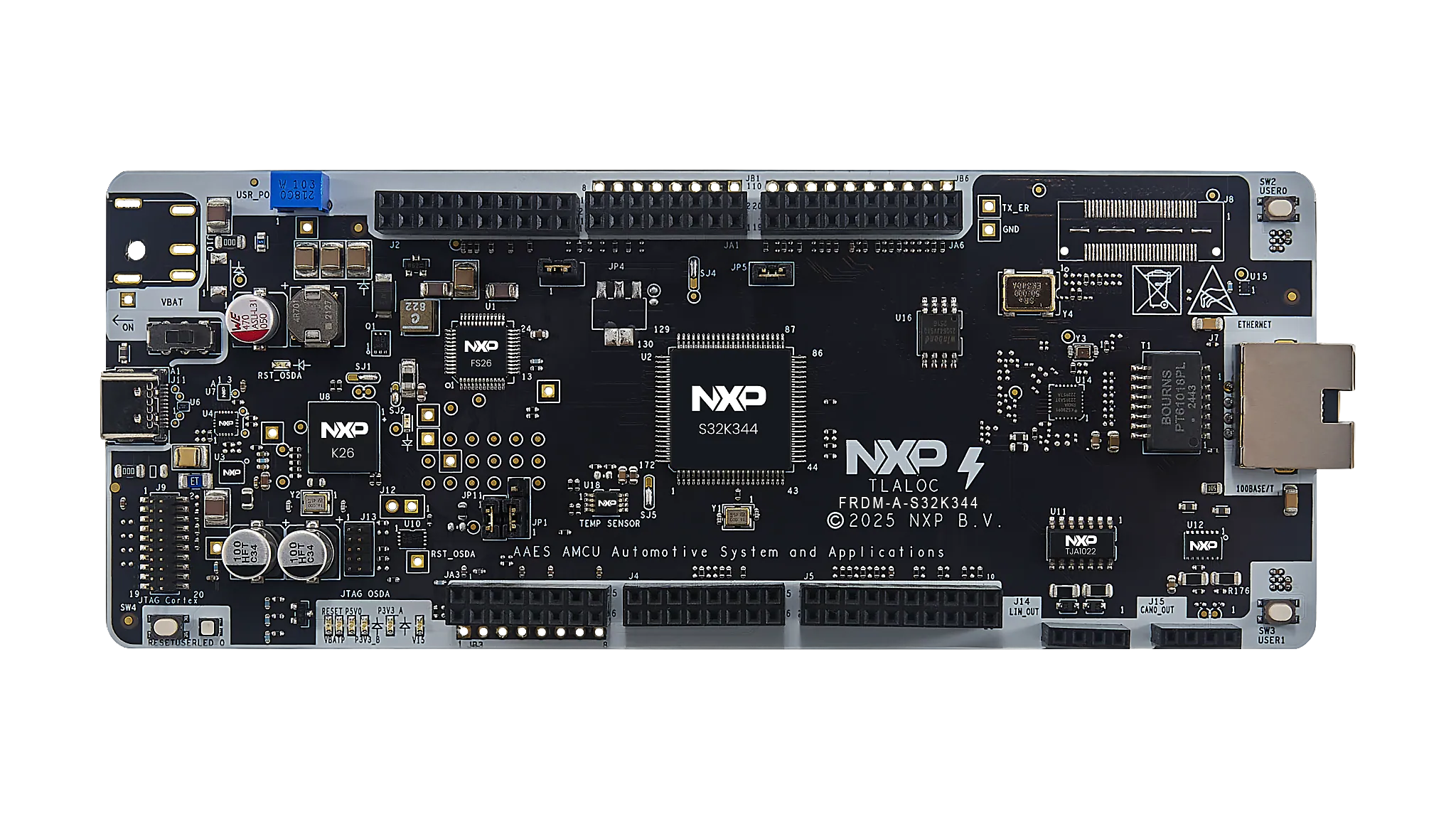
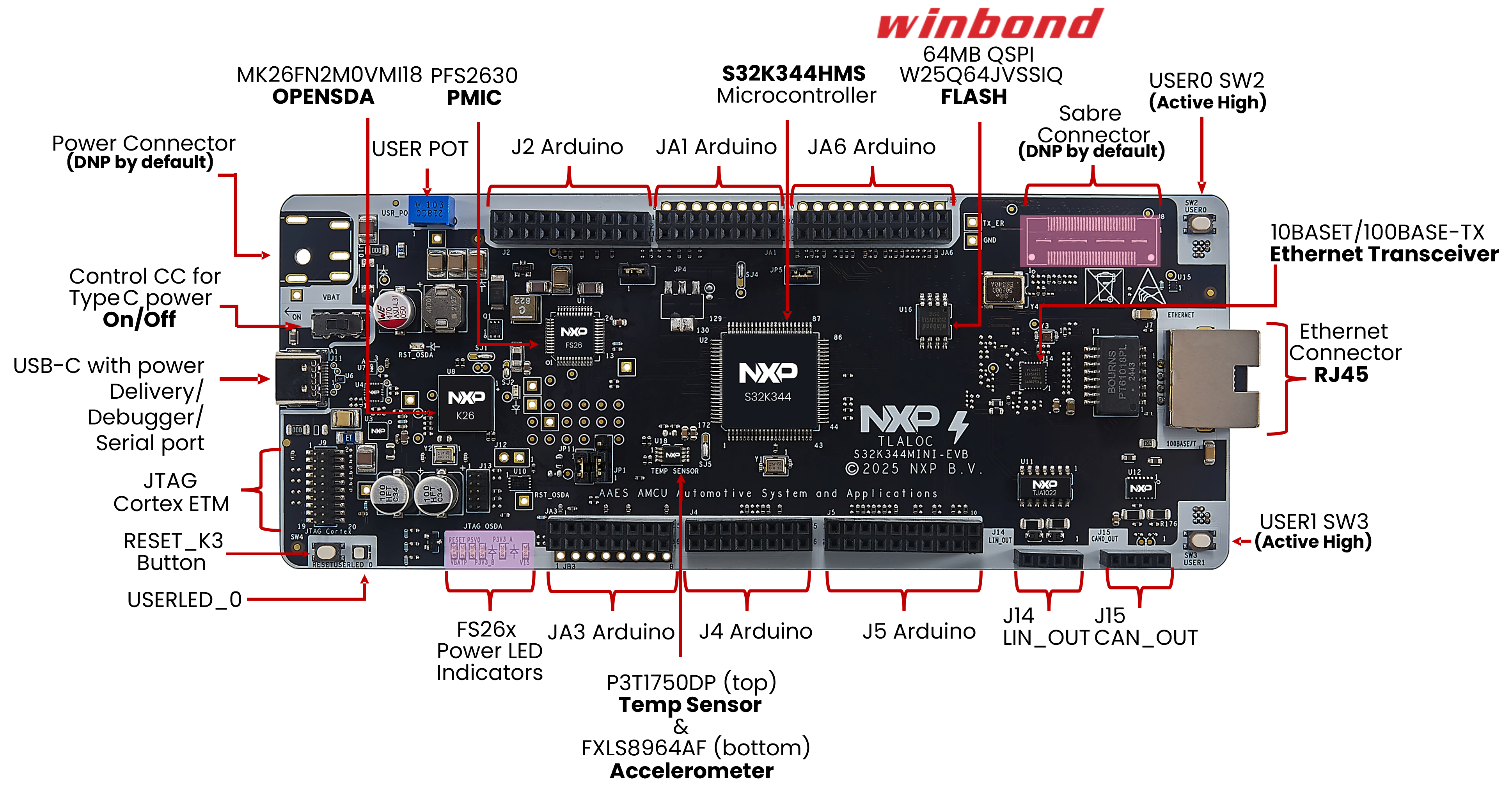
1.1 Get to Know the FRDM-A-S32K344 Development Board

S32K344MINI-EVB Evaluation Board

S32K344MINI-EVB Evaluation Board

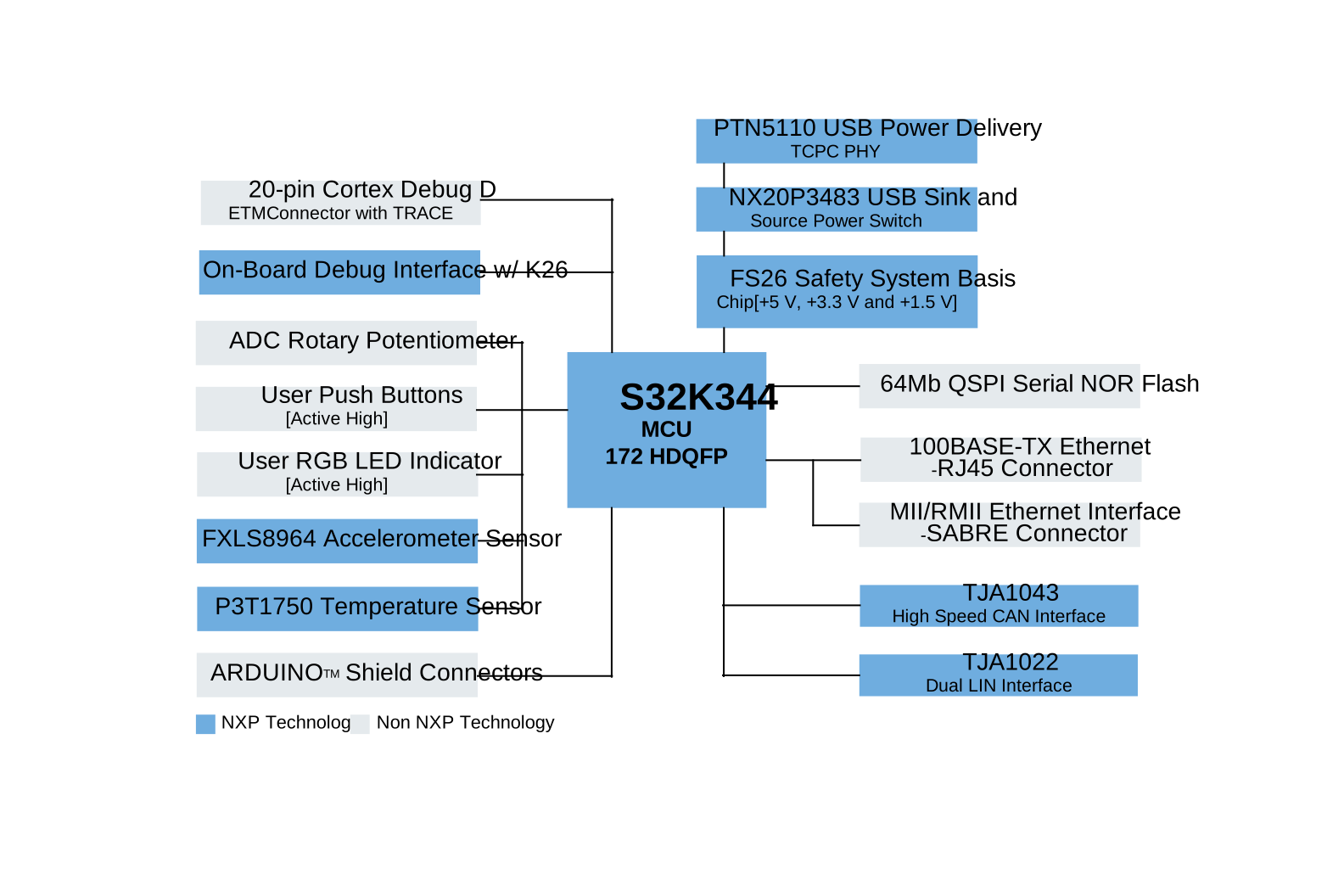
1.2 Block Diagram Features

S32K344MINI-EVB Block Diagram

S32K344MINI-EVB Block Diagram

2. Get Software

You can watch the video or follow the below step-by-step guide below to set up your software for the FRDM-A-S32K344 Development Board:

2.1 Get the Integrated Development Environment (IDE)

Download and install the S32 Design Studio IDE for S32 Platform.

DOWNLOAD S32 DESIGN STUDIO IDE

2.2 Install the S32K3xx Development Package and RTD

Go to Help → S32DS Extensions and Updates from the top menu to open the S32DS Extensions and Updates dialogue.

Continue with the installation of the RTD for S32K3xx:

2.3 Download and Install the Elektrobit tresos Studio and Real-Time Drivers (Only AUTOSAR® Users Only)

Download and install Elektrobit tresos Studio/AUTOSAR Configuration Tool from S32K3 Standard Software Package.

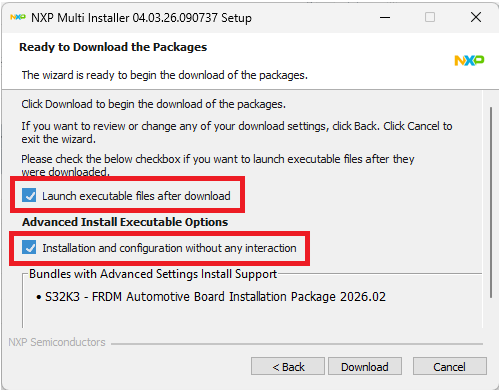
S32DS Tresos Installer

S32DS Tresos Installer

Download and install the .exe file of the S32K3 Real-Time Drivers for Cortex-M from the S32K3 Standard Software Package.

The installer will ask for the EB tresos installation directory on your disk, saving time in configuration.

2.4 Get the Run-Time Debugging Tool

FRDM-A-S32K344 performs better when using the FreeMASTER Run-Time Debugging Tool.

DOWNLOAD FREEMASTER TOOL

The FreeMASTER communication driver for S32K3 microcontrollers is also needed. Download it from the Automotive SW → S32K3 → S32 FreeMASTER link in the S32K3 Standard Software Package.

Open S32DS Extensions and Updates dialog (Menu → Help → S32DS Extensions and Updates), click on the Add Update Sites link and navigate to the FreeMASTER communication driver for S32K3 (zip file starting with "com.") on your disk.

Install the FreeMASTER communication driver for S32K3.

Aditional optional software may be downloaded from the S32K3 Reference Software Package.

3. Plug It In

3.1 Plug in the Power Supply

The S32K344MINI-EVB is a rapid prototyping board based on the S32K344EVB-Q172. As it is not intended for final production use, the board includes a primary power supply option via USB Power Delivery, connected to the FS26 SBC.

By default, the FRDM-A-S32K344 is powered via the J11 USB-C connector. It is recommended to use the USB-C cable included in the box, or any cable that supports USB Power Delivery (PD), to ensure full functionality of the board. Using a non-compliant cable may result in limited current supply and reduced performance.

To power the board properly, a USB-C PD compatible power source is required, such as a USB-C PD charger or a laptop with PD support. While most modern laptops support USB PD, please verify your device’s capabilities before use.

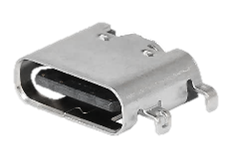
FRDM-A-S32K344 USB C Supply Connector

The FRDM-A-S32K344 supports input voltages up to 20 V. However, based on FS26 SBC recommendations, it is ideal to operate within 9 V, 12 V or 15 V ranges with at least 1 A. Achieving these voltages and current requires proper negotiation between the USB PD source and the PD PHY (PTN5110). For guidance on implementing this negotiation with the S32K344, consult your local NXP FAE or the code available in the NXP Application Code Hub web site.

3.2 Start-up Sequence

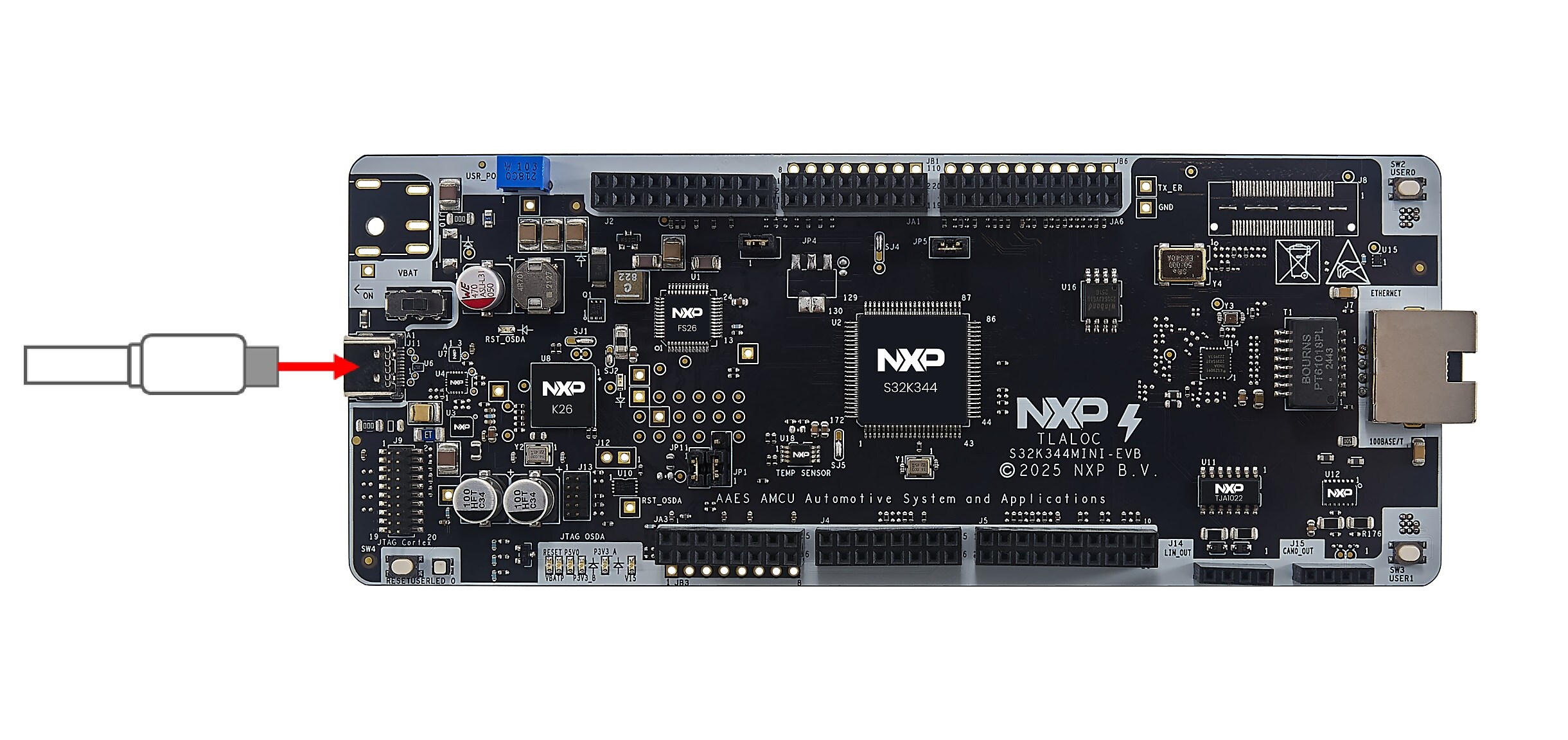
  1. Connect the USB-C cable to the J11 connector to power the board
  2. FRDM-A-S32K344 Start Sequence: Step 1

    FRDM-A-S32K344 Start Sequence: Step 1
  3. To power-on the board, change the default position of switch SW5 to the 2-3 setting
  4. FRDM-A-S32K344 Start Sequence: Step 2

    FRDM-A-S32K344 Start Sequence: Step 2
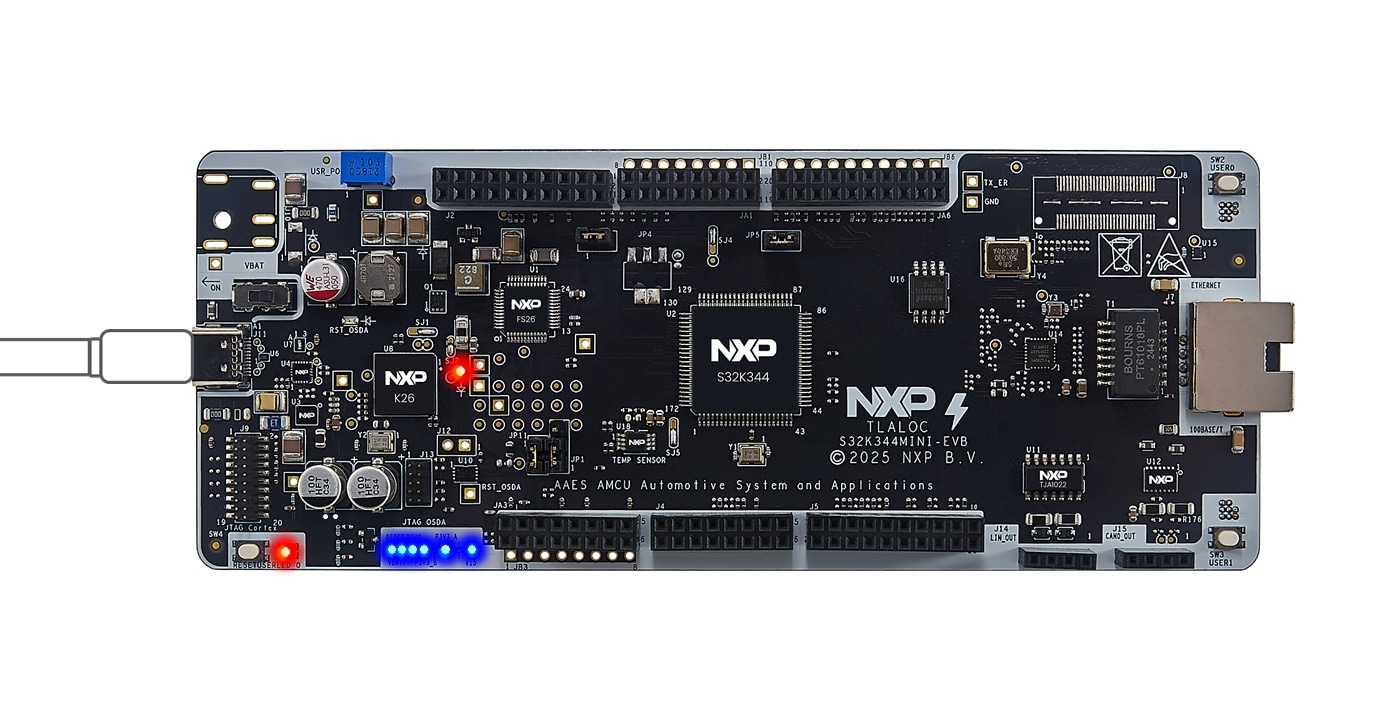
  5. Verify that all power LEDs indicators on the board are illuminated
  6. FRDM-A-S32K344 Start Sequence: Step 3

    FRDM-A-S32K344 Start Sequence: Step 3

3.3 Connect the Debugger Cable

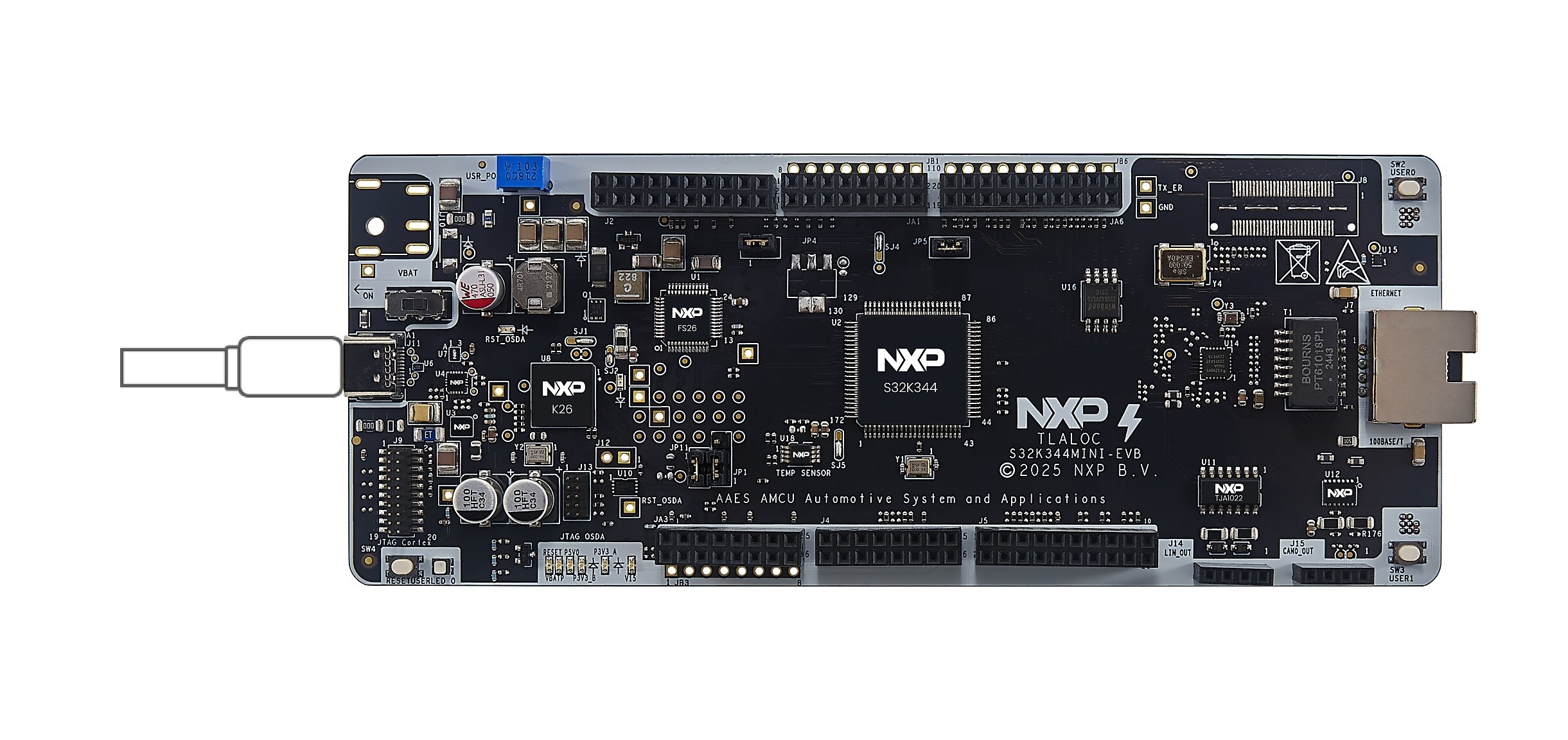
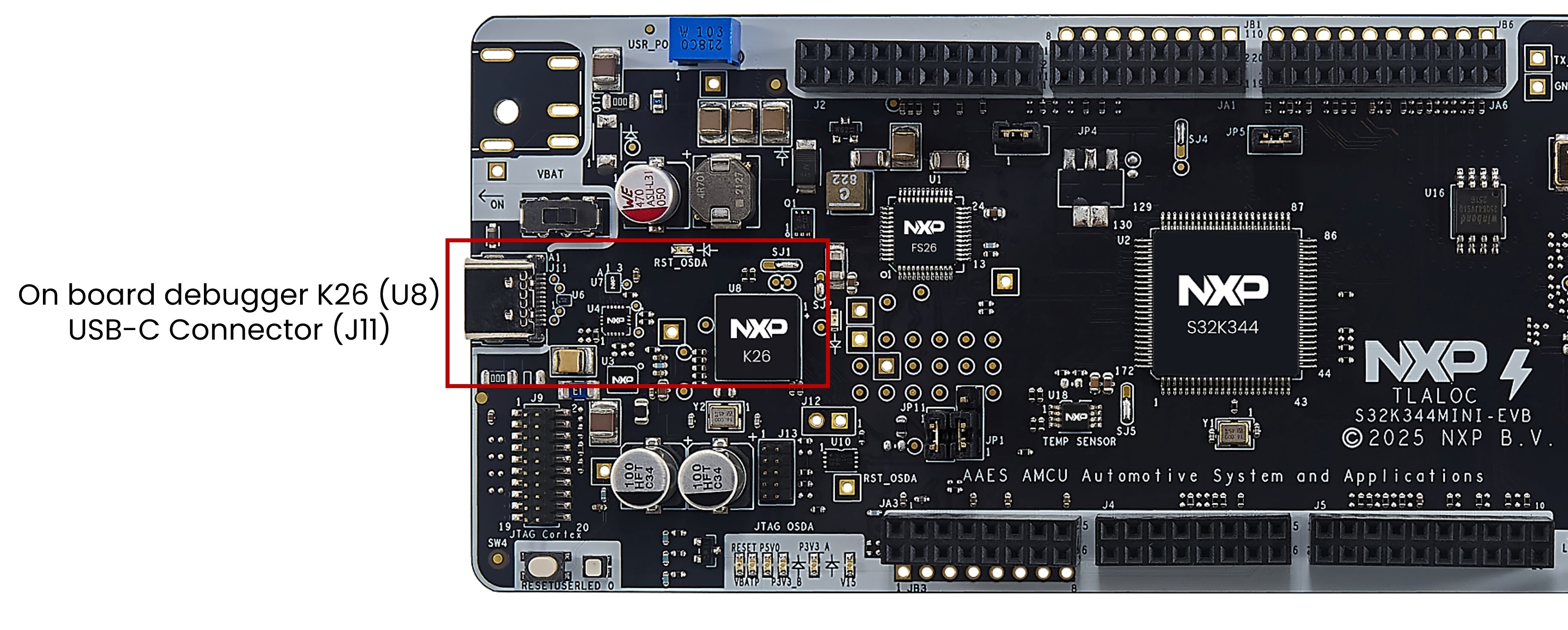
The board features an integrated On-Board Debugger along with standard JTAG connectors. This setup enables seamless serial and debug communication between a USB host and the target embedded processor, in this case, the K26 microcontroller.

Connect the USB-C cable included in the box to the connector or any USB-C data cable.

FRDM-A-S32K344 On-board Debugger

FRDM-A-S32K344 On-board Debugger

4. Build, Run

Now let's take your FRDM-A-S32K344 Development Board for a test drive.

4.1 Create a S32DS Project from Example

Open S32DS and from the menu, go to: File → New → S32DS Project from Example. Select one of RTD example codes. You may choose between examples with high-level application programming interface (API) or with low-level API. For example: Port_example_K312.

S32DS Project from Example

S32DS Project from Example

4.2 Using the Configuration Tool

Double-click on the .mex project file.

S32K312EVB-Q172 Mex File

Please ensure that you configure the appropriate project and click on "Update Code" button for generating configuration files.

S32K312EVB-Q172 Update Code

4.3 Upload Software and Debug

Return back to the C/C++ perspective.

S32K3 Automotive Telematics Box (T-Box) perspective

Refer to the Debug Configuration menu and select one of the predefined debug configurations for building and uploading software into the MCU.

S32K3X4EVB-Q172-GS-DEBUG-IMG

S32K312EVB-Q172 Debug Configuration

S32K312EVB-Q172 Debug Configuration

The S32DS will switch into debug perspective where you may let the code run.

S32K3X4EVB-Q172-GS-RUN-IMG

The red LED will now blink for approximately 10 seconds.

Support

Forums

Connect with other engineers and get expert advice on designing with the FRDM-A-S32K344 Development Board using our community sites.