Getting Started with MCXW72-LOC

上次修改时间: Mar 9, 2026 new 支持 MCXW72-LOC

本文档内容

  • 1

    Plug It In
  • 2

    Get Software
  • 3

    Build and Run
  • 4

    Create
  • 5

    MCUXpresso Developer Experience

1. Plug It In

Let's take your board for a test drive! You have the choice of watching the sequence in a short video or following the detailed actions listed below.

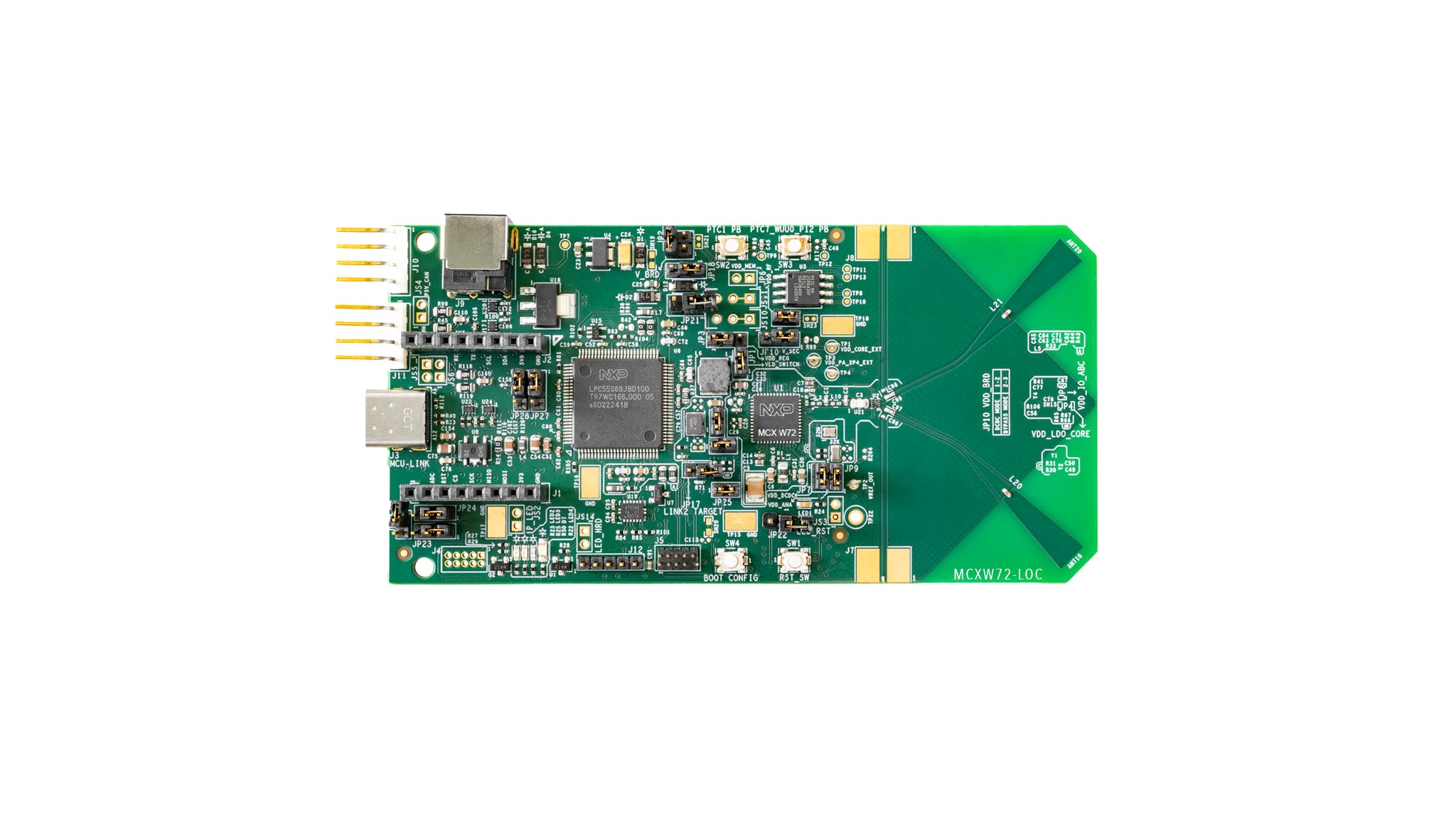
1.1 Get Familiar with the Board

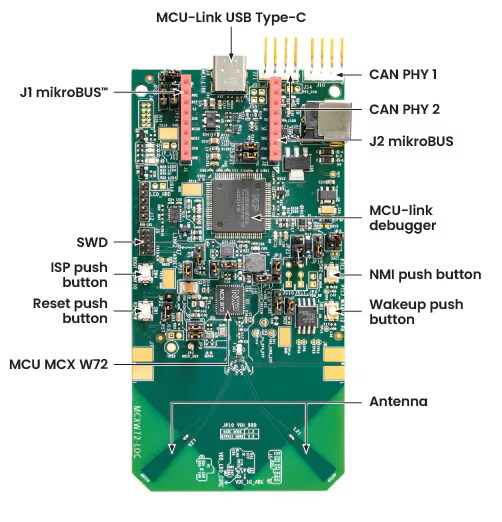
The MCXW72-LOC board is pre-programmed with a wireless localization demo. This serves as a sanity check to verify that the device is working as expected out of the box.

Get familiar with the board

Get familiar with the board

1.2 Plug In the Board

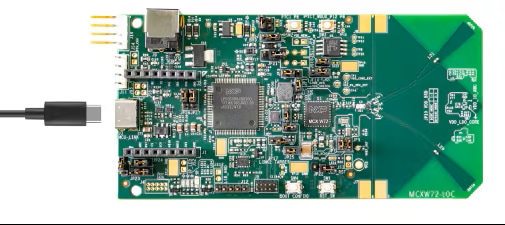
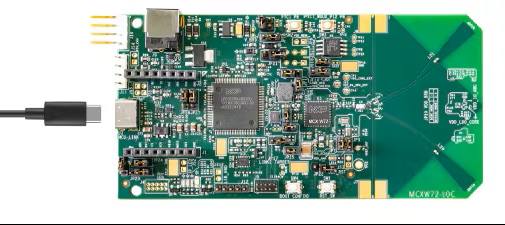
Connect a type-C USB cable from connector J3 to a host computer or power supply to power up the board and run the demo program. At this point, you should see the Blue LED blinking at a steady rhythm. Follow the steps shown in the video to run the demo. You will need two MCXW72-LOC boards.

Plug in the board

Plug in the board

2. Get Software

2.1 Install Your Toolchain

NXP offers a toolchain called MCUXpresso for VS Code. Please download MCUXpresso for VS Code v25.09 or newer.

Visual Studio Code

Get VS Code

Learn how to install VS Code for your host PC with the following tutorial.

2.2 Jump Start Your Design with the MCUXpresso SDK

The NXP extension adds tools to help add software repositories into the Visual Studio Code workspace. The software repository can be provided from three sources:

  • Remote git URL
  • NXP MCUXpresso archive file
  • Existing git folder

This section will import the MCUXpresso SDK using the remote git repostiory option. To import the repository in this way, follow these steps:

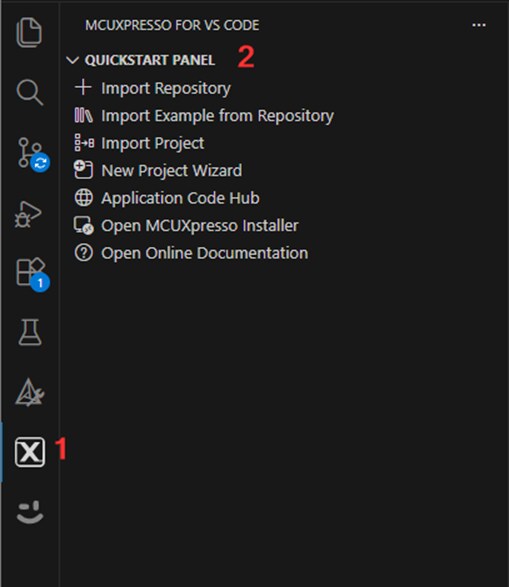
  1. Click on the MCUXpresso extension Icon
  2. Click on the "QUICKSTART PANEL" tab and then click on the "Import Repository" button. After pressing that button a new import window will appear
  3.  Jump Start Your Design with the MCUXpresso SDK - IMG1
  4. Select the "Remote" option to import the provided SDK files
  5. Browse to the Repository options by clicking on the arrow button and search for "MCUXpresso SDK" option
  6. Click on the arrow button for Revision and search for version "v25.09.00" or newer
  7. Click on "Browse" for the Location folder and select a common destination folder to store your SDK
  8. Enter a name for the new SDK
  9. Click on the "Import" button and wait for the installation
  10.  Jump Start Your Design with the MCUXpresso SDK - IMG2

2.3 MCUXpresso Config Tools

The MCUXpresso Config Tool is an integrated suite of configuration tools that guides users in creating new MCUXpresso SDK projects, and also provides pin and clock tools to generate initialization C code for custom board support. It is fully integrated as a part of MCUXpresso IDE and also as a separate tool if using a different IDE.

Click the Get MCUXpresso Config Tools below to get the Config Tools installer.

MCUXpresso Config Tools

Get MCUXpresso Config Tools

2.4 Programming and Provisioning Tools

The MCUXpresso Secure Provisioning (SEC) Tool is a GUI-based application provided to simplify the generation and provisioning of bootable executables on NXP MCU devices. We recommend all users to begin with the MCUXpresso Secure Provisioning (SEC) tool for trial run and mass production use. It supports secure programming and device provisioning on NXP's microcontrollers at the production stage.

After downloading the tool, you can find the user guide under the ‘Help’ tab. Follow the instructions for your board in the ‘Processor-specific workflow’ chapter.

SEC

SEC Installation

2.5 Installing IoT Toolbox

NXP's IoT Toolbox is a versatile mobile application designed to support wireless connectivity demonstrations and testing. It provides an intuitive interface to interact with NXP development platform. You will need this app to follow the next sections on this Getting Started guide.

Get started by installing the IoT Toolbox on your smartphone:

Get it on Google Play

IoT Toolbox Icon

3. Build and Run

3.1 Updating the NBU Firmware

Before running any wireless demo, you need to make sure to have the NBU firmware updated to the SDK version you are going to use.

  1. Connect your MCXW72-LOC board to your PC using a USB type-C cable
  2. Open the LinkFlash tool you should have installed in Section 2.1. This tool comes included with the LinkServer component. The default path for this tool is "C:\nxp\LinkServer_XX.XX.XX\LinkFlash.exe"
  3. Verify that your board is being recognized by the tool in the "Probe" field, if not, click on "Refresh"
  4. Go to the "Erase" tab, an select the NBU memory region by clicking on the checkbox
  5. GS-MCXW72LOC Build Run Image 1
  6. Click on the "Erase" button. Verify that the operation was successful by the message at the bottom of the window
  7. GS-MCXW72LOC Build Run Image 2
  8. Go back to the "Program" tab and click on the "Browse" button to look for your NBU firmware binary file
  9. GS-MCXW72LOC Build Run Image 3
  10. Browse to the directory where you installed your SDK on Section 2.2, and follow the path to the NBU file: "{your_SDK_path}\mcuxsdk\middleware\wireless\ble_controller\bin\mcxw72_nbu_ble_all_hosted.bin". Click on "Open"
  11. GS-MCXW72LOC Build Run Image 4
  12. On the "Address" field, type 0x48800000. Click on "Program". Verify the correct completion of the operation
  13. GS-MCXW72LOC Build Run Image 5

3.2 Build and Flash Application using MCUXpresso for VS Code

  1. Find the activity bar in the left-hand bar and click it to open it. Once it's open go to the explorer and open the project tab
  2. Build and flash application using MCUXpresso IDE - step 1
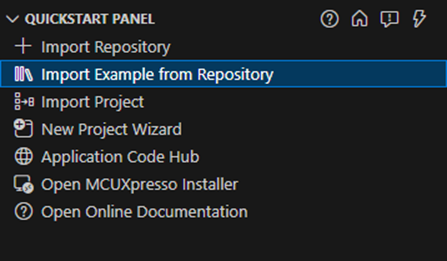
  3. Then click on Import example from repository Build and flash application using MCUXpresso IDE - step 2 The following tab will open on the editor screen
  4. Build and flash application using MCUXpresso IDE - step 2-1
  5. Click on the arrow button on repository tab to choose your previously downloaded SDK, and the toolchain that matches the version
  6. Build and flash application using MCUXpresso IDE - step 3
  7. Select the KW47-LOC board from the Boards drop-down menu
  8. Build and flash application using MCUXpresso IDE - step 4
  9. Use the arrow button to expand the Template tab, and then select the"wireless_examples/bluetooth/bm/wireless_uart_bm" to use it as a template for the project. Then, click on import button
  10. Build and flash application using MCUXpresso IDE - step 5
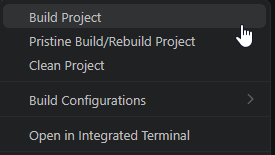
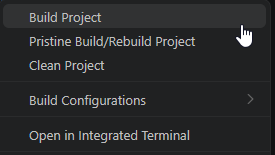
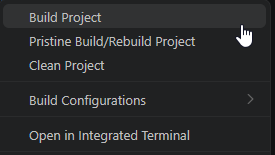
  11. Select the project and build it by either clicking on the build icon in the shortcuts provided or by doing a right click and select the "Build" option
  12. Build and flash application using MCUXpresso IDE - step 6
  13. The project should build without presenting any errors or warnings in the console
  14. Build and flash application using MCUXpresso IDE - step 7
  15. Connect the board to your computer with the micro USB to J3 ‘MCU-LINK’ port
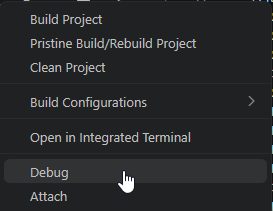
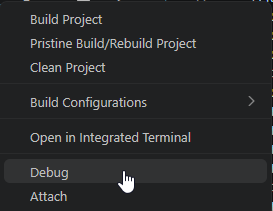
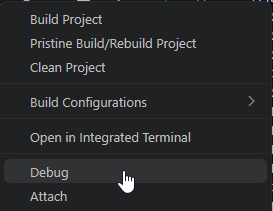
  16. Download the application to your board by either clicking on the debug icon or by doing a right click and select the "Debug" option
  17. Build and flash application using MCUXpresso IDE - step 9
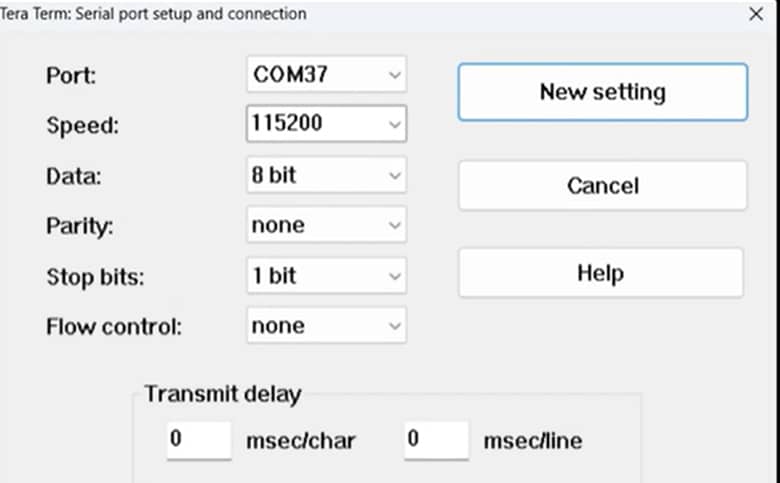
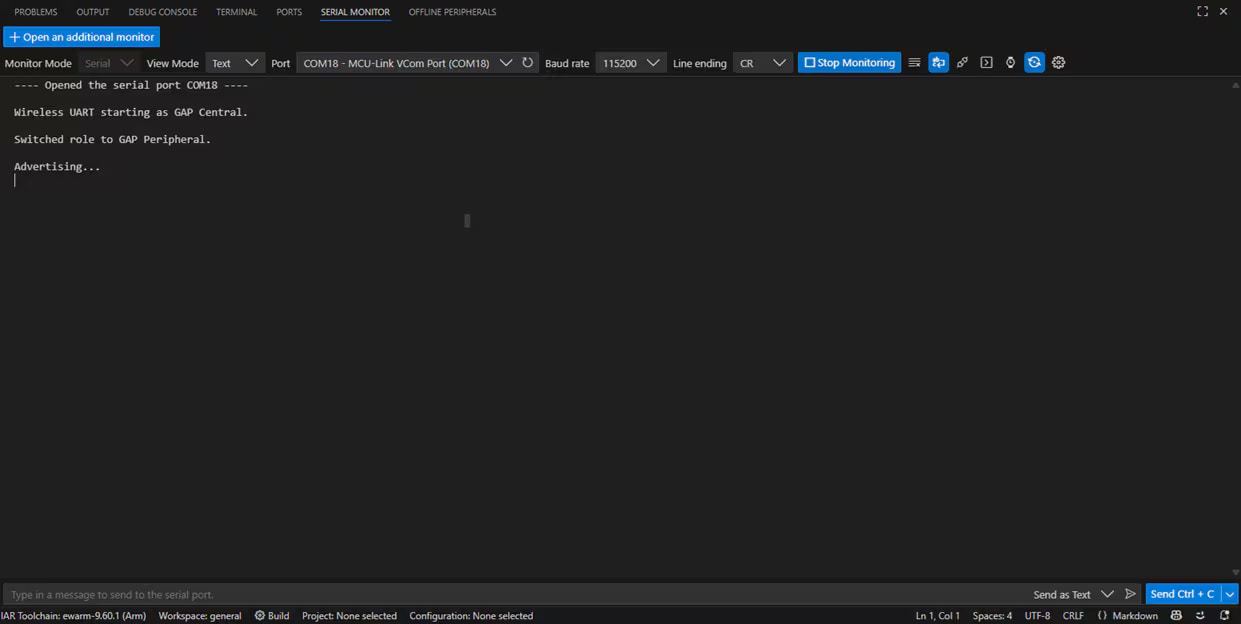
  18. Open up a serial terminal to be able to see the application’s output. Select the port corresponding to the MCULINK probe to your board “MCULink-VCOM” window. Set your terminal to boudrate or speed to "115200", 8 bits data, no parity and 1 stop bit and connect to that port
  19. Build and flash application using MCUXpresso IDE - step 10 Build and flash application using MCUXpresso IDE - step 10-1
  20. Run the application by pressing the “run” icon. See the output printed on the terminal
  21. Build and flash application using MCUXpresso IDE - step 11 Build and flash application using MCUXpresso IDE - step 11-1
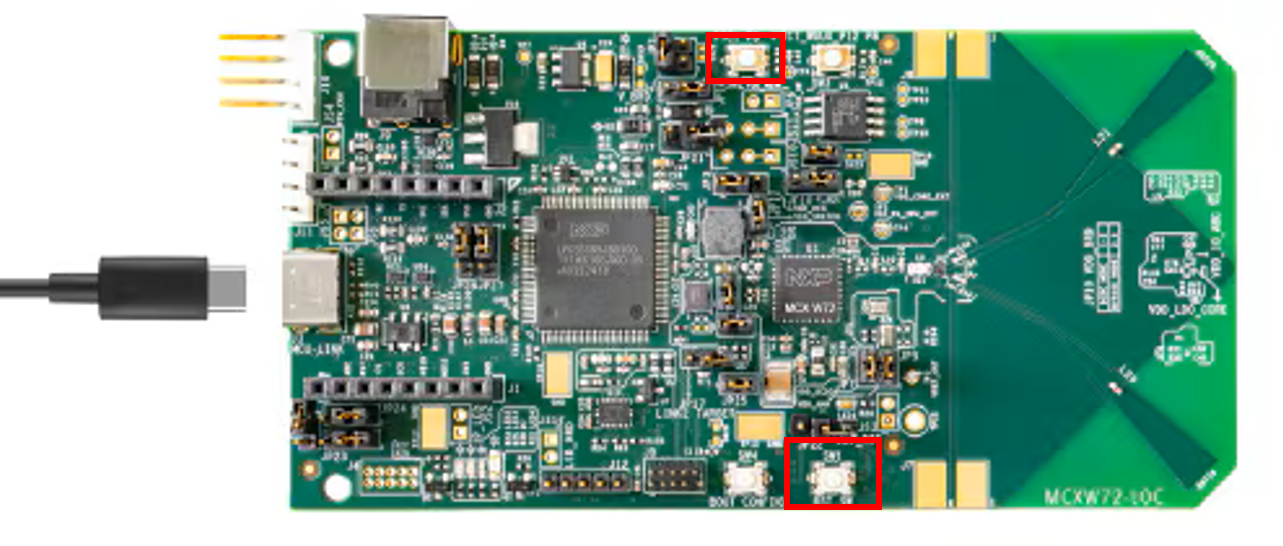
  22. Press SW3 button to switch the BLE role to peripheral. Then press SW2 to start BLE Advertising. You should see the messages printed on the terminal
  23. Build and flash application using MCUXpresso IDE - step 12
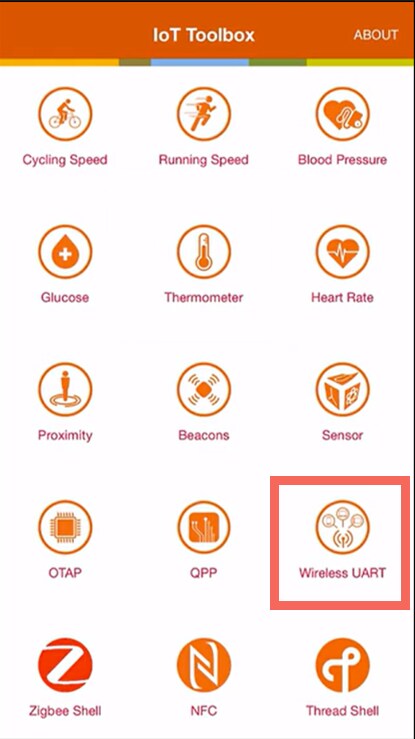
  24. Use the IoT Toolbox app to connect to the board. First, select Wireless UART in the main menu
  25. Build and flash application using MCUXpresso IDE - step 13
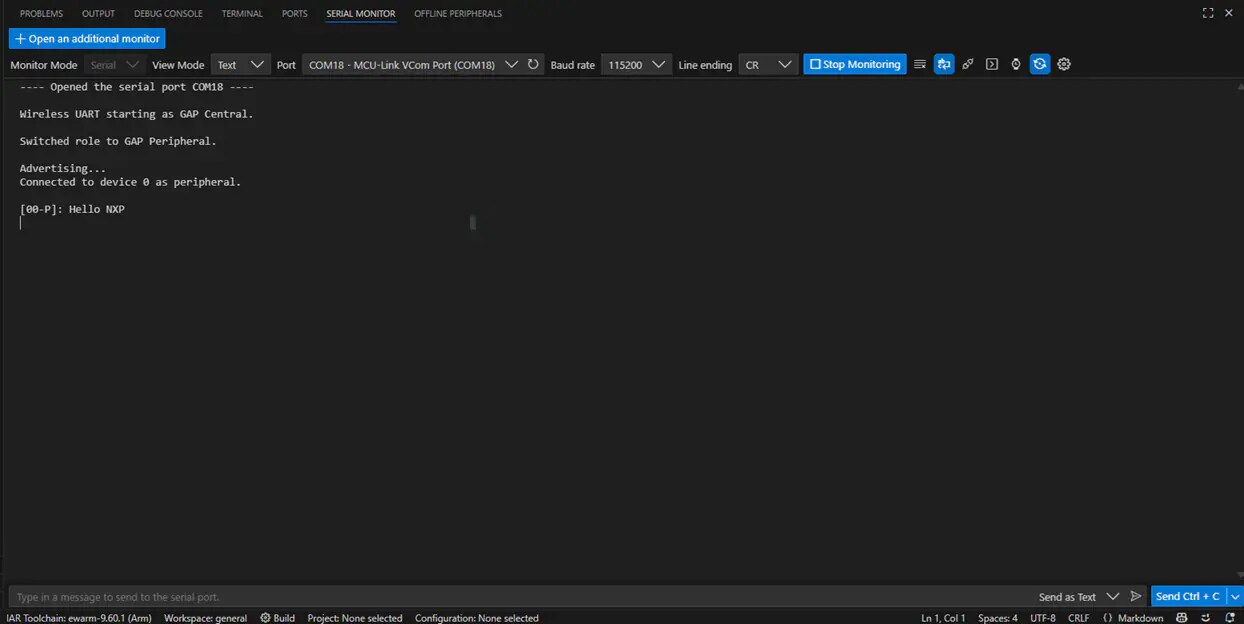
  26. Select the board to connect. You should see a connection message displayed on the terminal
  27. Build and flash application using MCUXpresso IDE - step 14 Build and flash application using MCUXpresso IDE - step 14-1
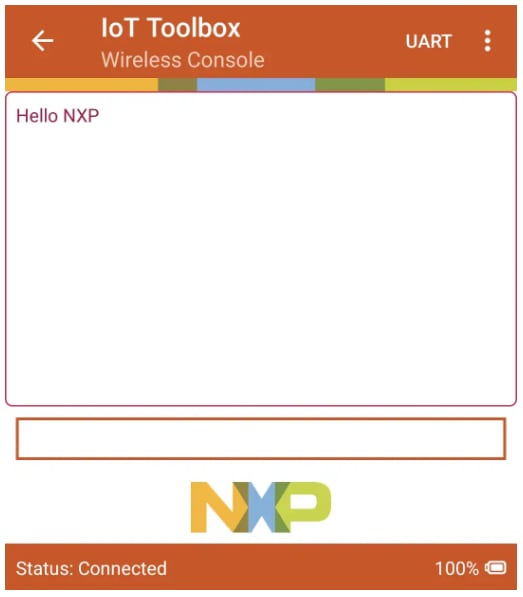
  28. Type any message on the app and see it displayed on the terminal
  29. Build and flash application using MCUXpresso IDE - step 15 Build and flash application using MCUXpresso IDE - step 15-1
  30. Type a message into the terminal and see it displayed on the app
  31. Build and flash application using MCUXpresso IDE - step 16

4. Create

4.1 Clone an Example Project from MCUXpresso IDE

The following steps will guide you through the manipulation of the general-purpose outputs. The example sets up an LED that toggles every second.

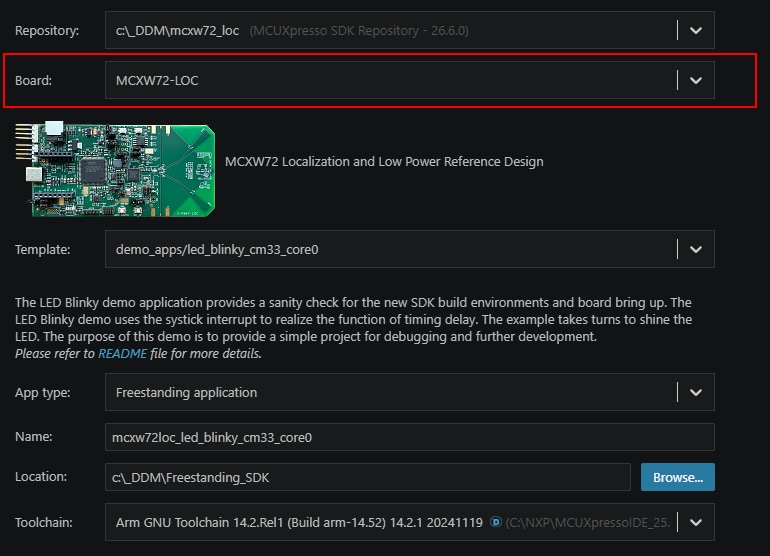
  1. Following the instructions from the previous section, import the led_blinky SDK example
  2. Clone an example project from MCUXpresso IDE - step 1
  3. Click on the “led_blinky_cm33_core0” project in the Project tab and build, compile, and run the demo as described in the previous section
  4. Clone an example project from MCUXpresso IDE - step 2
  5. You should see the BLUE LED toggling each second
  6. Terminate the debug session

4.2 Use MCUXpresso Config Tools

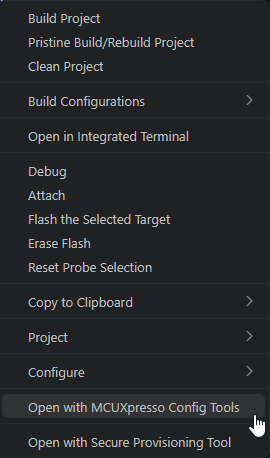
  1. Open the pins tool by right clicking on your project and then selecting "Open with MCUXpresso Config Tools"
  2. Use MCUXpresso config tools - step 1
  3. Select the "Open an existing configuration" option. Browse to the path where you installed the SDK, then to mcuxsdk\examples\_boards\kw47loc\demo_apps\led_blinky\ and select led_blinky.mex file and click on Finish
  4. The pins tool should now display the pin configuration for the blinky led project
  5. Use MCUXpresso config tools - step 3

4.3 Use the Pins Tools to Modify the LED Routed Pin

  1. In the Pins view deselect “Show dedicated pins” and “Show no routed pins” checkboxes to see only the routed pins. Routed pins have a check in a green box next to the pin name. The functions selected for each routed pin are highlighted in green
  2. Use the pins tools to modify the LED routed pin - step 1
  3. In the current configuration, PTC0 (LEB_BLUE) is routed as an output. Let’s add the pin configuration to enable the GREEN LED
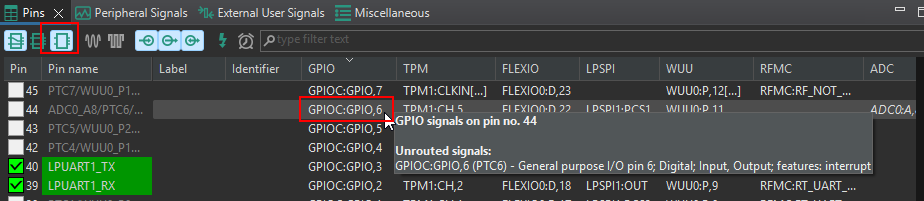
  4. Select “Show no routed pins” to see the other options. To enable the GREEN LED, search for PTC6 and select GPIO6, under the GPIO column. Select "No" for any Simultaneous Routing message
  5. Use the pins tools to modify the LED routed pin - step 3
  6. Next configure the GPIO pin as an output and Logical 1 as GPIO initial state in the “Routing Details” window
  7. Use the pins tools to modify the LED routed pin - step 4
  8. Now it’s time to implement these changes into the project by exporting the new updated pin_mux.c and pin_mux.h files that are generated by the Pins tool. Click on Update Project in the menu bar
  9. Use the pins tools to modify the LED routed pin - step 5
  10. The screen that pops up will show the files that are changing. Click on “OK” to overwrite the new files into your project
  11. Use the pins tools to modify the LED routed pin - step 6
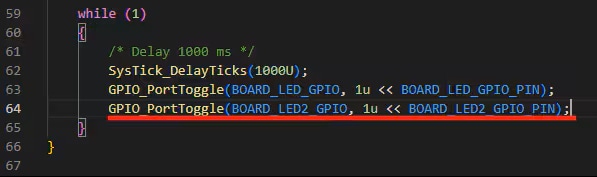
  12. Let’s add some additional code to the example. Open led_blinky.c file and add the following line to toggle the GREEN LED
  13. Use the pins tools to modify the LED routed pin - step 7
  14. Build and download the project as done in the previous section
  15. Run the application. You should now see the Green and Blue LED blinking alternately
  16. Terminate the debug session

5. MCUXpresso Developer Experience

Check out each of the following sections to learn about the ecosystem provided for flexible protyping and development. In the video below, we will introduce you to the FRDM platform, the full-featured EVK and the compatible shields for extended capabilities. In addition we will walk you through our Application Code Hub portal where we provide numerous application examples through NXP's Github.

5.1 FRDM Platform, Full Feature EVK and Shields

For quick prototyping platforms, we offer both the low-cost FRDM platform and the full-featured EVK.

FRDM development boards come with standard form factor and headers, easy access to MCU I/Os, on-board MCU-Link debugger and a USB-C cable. Our full featured evaluation kits include extended I/O and interface access, extendibility with WiFi and additional MCU-Link features. There are also many compatible Click Boards and/or Arduino shields. For those that are supported with an Open CMSIS Pack examples may be available on ACH, but if not, many of them are easy to use via serial interface like I2C, SPI and UART, for which we provide drivers with examples in the MCUXpresso SDK.

5.2 Application Code Hub

The Application Code Hub further enhances our MCUXpresso Developer Experience by giving developers an interactive dashboard to quickly locate software. Visit the ACH  today to start exploring or discover additional details and benefits of the new interactive Application Code Hub.

Software accessible from Application Code Hub is located in NXP’s GitHub repository  so it can be easily accessed and cloned from that location directly.

5.3 Demo Walkthrough

The following demo walks us through importing a project from ACH using a system based on the FRDM platform with a motor control shield and a low cost LCD. Although your evaluation board may differ from this system, the following steps can be replicated and used for all supported platforms.